How-to
Generate 24Q, 27A and FVU files
Documents received from the client for filing 24Q
1. Three months' challans
2. Acknowledgement number of the last filing
3. CSI file
Note:
1. Before starting the process below, check that Java is downloaded.
2. Mail the following to the client: a. 27A_BLRT14716C_24Q_Q1_202324.pdf
b. Form24Q.fvu (FVU file)
c. Form24Q.html
Important points before generating 24Q
1. Update the PAN of all employees.
2. Check the number of tax deductees whose tax is "ZERO" and the amount against the 27A file.
3. Check the total gross and total tax deducted in the tax computation sheet and the 27A file.
4. Check for any tax differences as per the challan and fix them.
5. If any employee's salary was held in one month and released in the next month during the quarter, check and update the values in the challan month-wise.
Steps to generate 24Q
1. Navigate to Control Panel → Payroll → 24Q, click Deductor details, and fill in Deductor with the company details and Deductee with the responsible person's details.
2. Click Generate FVU file.
3. Mark YES/NO for the options below:
Has the address of Deductor changed since last return?
Has the address of Responsible Person changed since last return?
Was a Regular TDS Return filed last quarter?
Provide the 15-digit token number (Provisional Receipt Number) of the last return.
4. Fill in the 15-digit token number of the RRR Number.
5. Click Generate FVU file.
6. You receive the 24Q text file.
Steps to generate the CSI text file
Download it from the NSDL portal:
- Click the link https://tin.tin.nsdl.com/oltas/
- Choose the TAN Based view option.
- Enter the TAN, such as (BLRT14716C), in the text box, select the challan start date, such as (May 07, 2023) and end date, such as (Aug 03, 2023) from the date picker, and enter the captcha as shown in the form.
- Click the download challan file button.
- If you cannot download it from the NSDL portal, download it from the income tax portal:
- Click the link https://eportal.incometax.gov.in/iec/foservices/#/login
- Log in to the e-Filing portal using your TAN, such as (BLRT14716C), in the text box as the User ID.
- Go to e-File → e-Pay Tax Service.
- On the e-Pay Tax page, click the Payment History tab.
- Click the Filter options.
- Select the payment date range, with a start date such as (May 07, 2023) and an end date such as (Aug 03, 2023) in Filter options.
- Once the download CSI file button is enabled, click it to download the file.
Steps to generate FVU
1. Click the link https://www.protean-tinpan.com/services/etds-etcs/etds-file-validation-utility.html
e-TDS/TCS File Validation Utility (protean-tinpan.com)
2. Click e-TDS/TCS FVU.exe (Version 8.0 or newer)
3. Extract the Zip file downloaded in step 2.
4. TDS_STANDALONE_FVU_7.6.jar
Open the TDS_STANDALONE_FVU_8.1.bat
5. In TDS/TCS Input File Name with Path, choose the file (Form24Q) generated by HRStop.
6. In Challan Input File Name with Path, choose the CSI file you downloaded in the step above.
7. In Error/Upload & Statistics Report File Path, choose the path to save the file generated by the utility.
8. Click "Validate".
9. After validation, you see a pop-up message like the screenshot below:
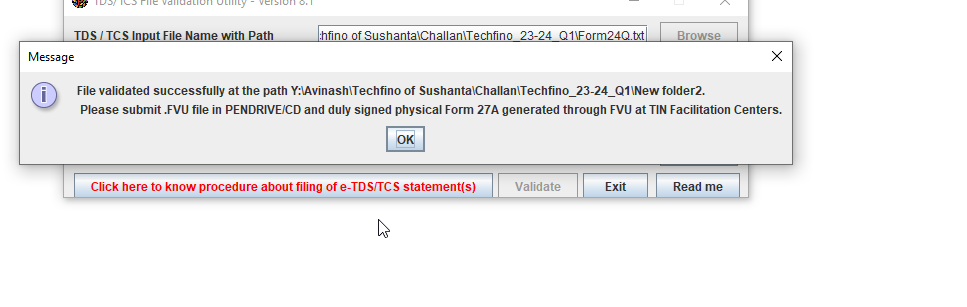
10. Click "OK". You then see a pop-up message like the screenshot below:
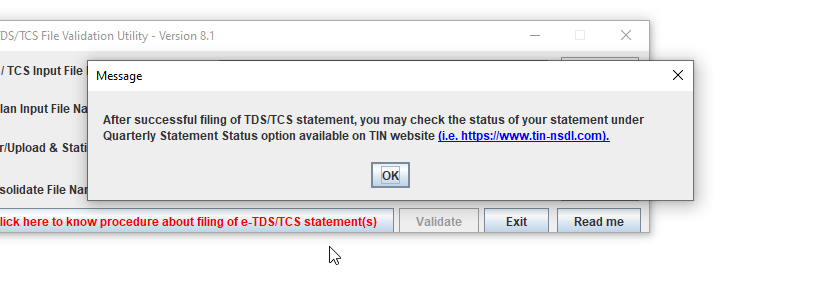
11. Click "OK". You then receive the following files:
a. 27A_BLRT14716C_24Q_Q1_202324.pdf
b. Form24Q.fvu (FVU file)
c. Form24Q.fvu.log
d. Form24Q.html
12. After generating all these files, submit them to the TIN-FC.
1. Question: Why do we generate 24Q?
Ans: 1. It shows all payments and deductions from employee salaries, and 24Q helps generate the File Validation Utility (FVU) file.
2. It is a quarterly statement of TDS deducted from employee salaries, which the employer submits to the IT department.
3. It shows how much is paid to and deducted from employee salaries.
4. 24Q has 2 annexures: 1. Annexure I has to be submitted for all four quarters of the FY.
2. Annexure II has to be submitted only for the last quarter.
Annexure: A legal document with confidential information that supports the main file.
2. Question: Why do we generate 27A?
Ans: It is a summary of TDS deposited by the employer for a certain period. It is a statement of deduction or collection of tax for a certain period.
This form contains particulars of the total amount paid, income tax deducted at source and tax deposited. The deductor must fill it out carefully and sign it, and submit it along with the return at the nearest TIN facilitation center.
3. Question: Why do we generate the FVU (File Validation Utility) file?
Ans: FVU is a program developed by NSDL, which is used to ascertain whether the e-TDS/TCS return file contains any format level error (s). When you pass an e-TDS/TCS return through FVU, it generates an ‘error/response file’. If there are no errors in the e-TDS/TCS return file, the error/response file displays the control totals.
4. If you have to zero-process the salary for three months, adjust the same amount in Earning and Tax on the challan page, and deduct tax.