How-to
Configure DSC in the employer EPFO portal
1. Log in to the Employer EPFO Portal.
Link: https://unifiedportal-emp.epfindia.gov.in/epfo/
2. Go to the "Establishment" tab.
3. Select "DSC/E-Sign".
4. A new page opens, as shown below.
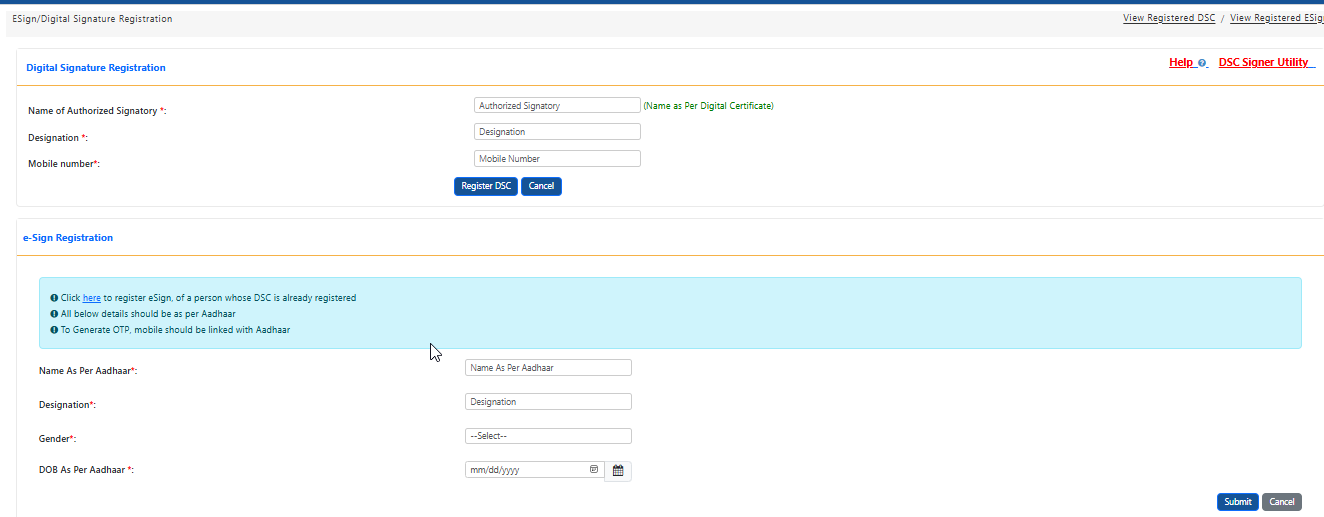
5. Fill in the options below step by step:
i- Name of Authorized Signatory
ii- Designation
iii- Mobile Number
iv- Plug the DSC into your system.
v- Type of Registration- (a. Signed with. Sign with your USB Token(pen drive)
vi- Click "Submit".
6. You see the EPFO-DSC TOKEN REGISTRATION page.
7. Select the DSC option.
8. Enter the DSC password to update, then click "OK".
9. After you click "OK", a pop-up window appears; click "OK" again.
10. Your DSC is now configured in your Employer EPFO Portal.
How to approve pending details by DSC
1. Go to the "Establishment" option.
2. Click "DSC/E-Sign".
3. A new page opens.
4. On the right side, you can see the "view" option.
5. Click "View" to see all DSC details, including how many times you have applied for and requested/updated your DSC.
6. Click the "Request" option on the right side. The request option changes to a PDF option.
7. Click the PDF option to see the sign option for your authorized signatory.
8. Authorized signatories need to sign three times.
9. Make three copies of this PDF page:
i- First copy: scan it and upload it on the Employer EPFO Portal.
ii- Second copy: submit it at your nearest local PF office.
10. You can now approve employee KYC by DSC.