How-to
Apply an incentive request
Follow these steps to apply an incentive request:
1. Navigate to Main Panel → Compensation → Incentive Request → View/Apply.
2. A new page opens, as shown below.

3. Click "+Request Incentive" in the top-right corner.
4. A new page opens, as shown below.
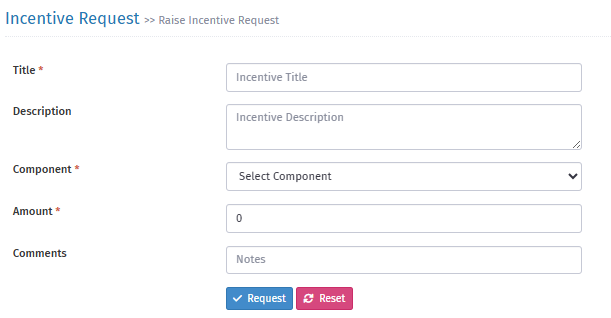
5. Fill in the options step by step:
Title: Type "Incentive".
Description: Enter any note.
Component: Select the component against which you want to give the incentive.
Amount: Enter the amount.
Comments: Enter any note about the incentive here.
Finally, click "Request" to add the incentive request.
6. Follow these steps to approve or disburse the requested incentives:
i. Navigate to Control Panel → Payroll → Incentive Request.
ii. A new page opens, as shown below.

iii. Select the employee and click "Mark as Approved" under the "Action" bar.
iv. After approval, click "Mark as Disbursed" under the "Action" bar.
v. After disbursal, run the payroll for the employee. The incentive shows on the payslip.