How-to
View an employee's detailed profile
HRStop lets you view detailed employee profiles. This helps you fetch all the relevant employee information available in the system.
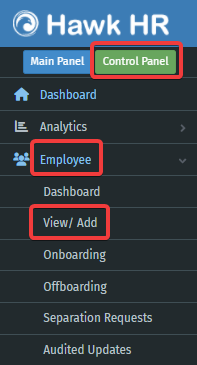
- Navigate to Control Panel → Employee → View/Add.
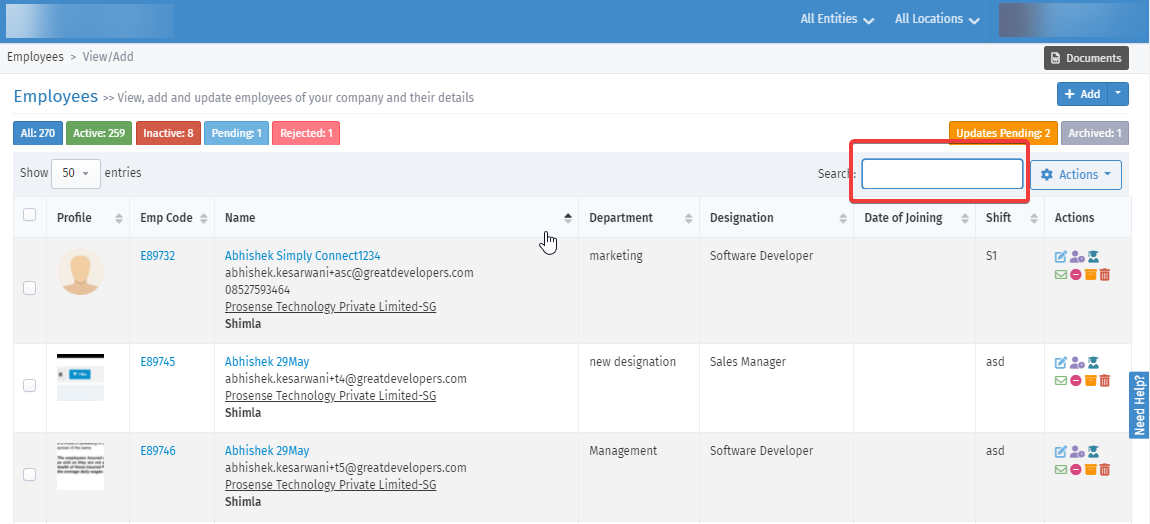
- A list of all employees is shown on this page.
- Search for the employee by entering their name in the search box.
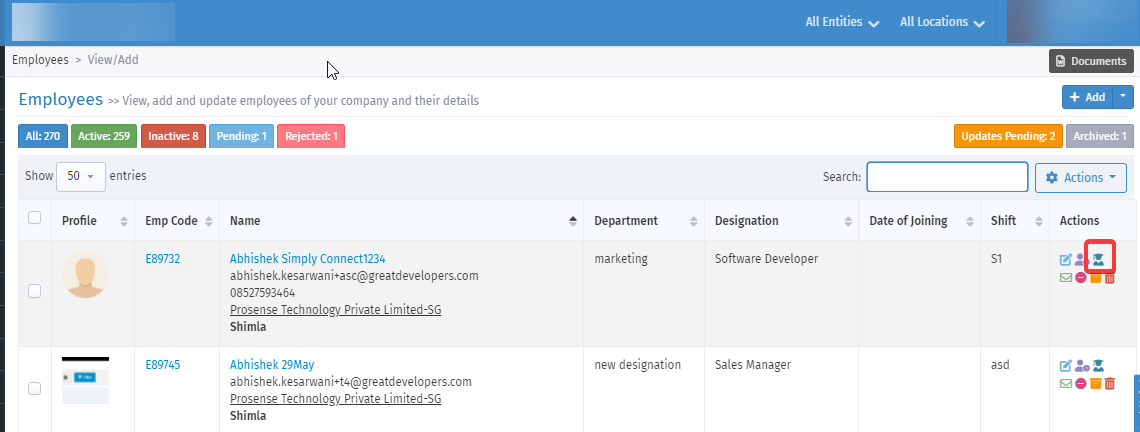
- Under Actions, click view detailed profile for the employee whose profile you want to view. The employee's detailed profile, including personal details, contact details, bank account, documents, education, etc., is available.
- The employee's complete detailed profile, including personal details, contact details, bank account, documents, education, etc., is available.
- Important figures such as DOJ, CTC, probation period, tenure, etc., are available on the top-right side.
Note:
- Edit: To make any changes to the employee profile, click Edit. This redirects you to the employee profile edit page, where you can make the desired changes. All changes are made instantly once you click Update.
- Export: HRStop lets you download the detailed profile view in PDF format.
Frequently asked questions
How can I view an employee’s activity timeline?
HRStop’s Employee Timeline feature allows admins to view a detailed log of all activities related to an employee's profile. To access it:
- Navigate to Control Panel → Employees → View/Add.
- Use the search bar to find the employee.
- Click "View Employee Timeline" under the Actions column.
- A new page opens, displaying the employee's profile and activity timeline.
You can use filters on the page to view specific types of activities.
Note: The timeline is read-only and cannot be edited.