How-to
Download Form 16 (Part A & Part B)
1. Important information on Part A & Part B
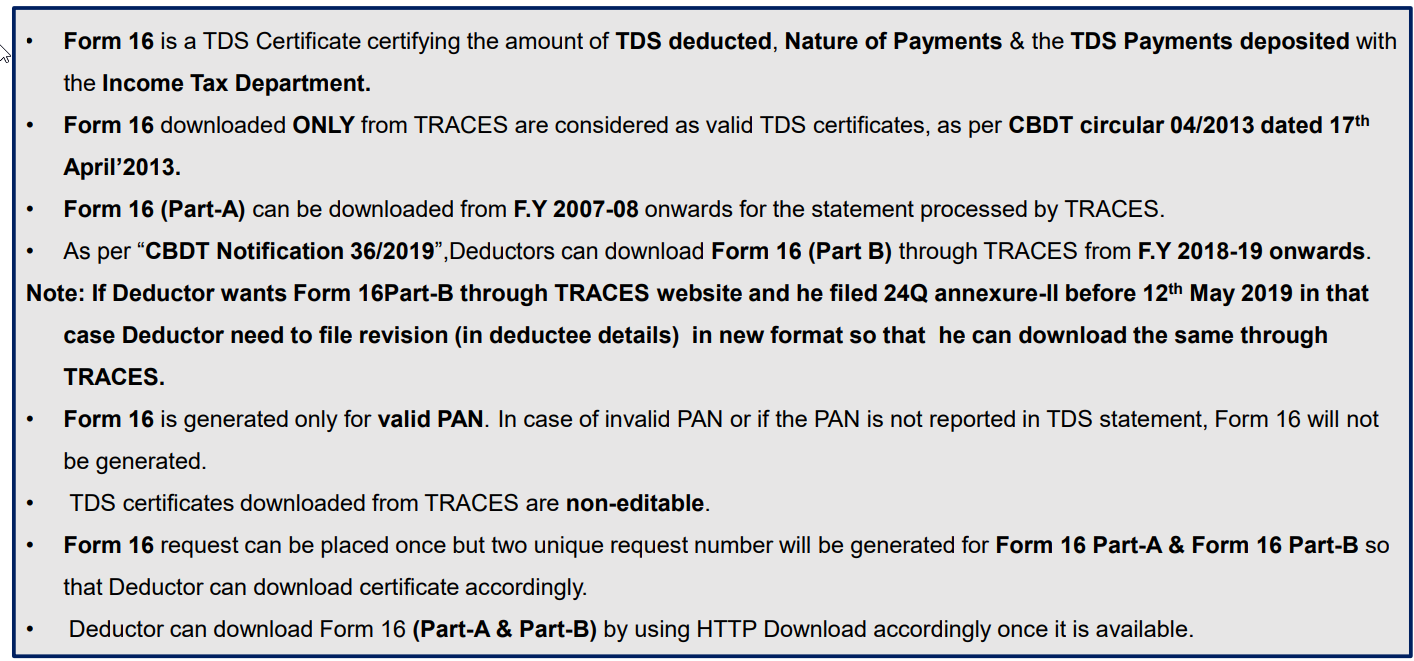
2. Important information on Part A & Part B (contd.)
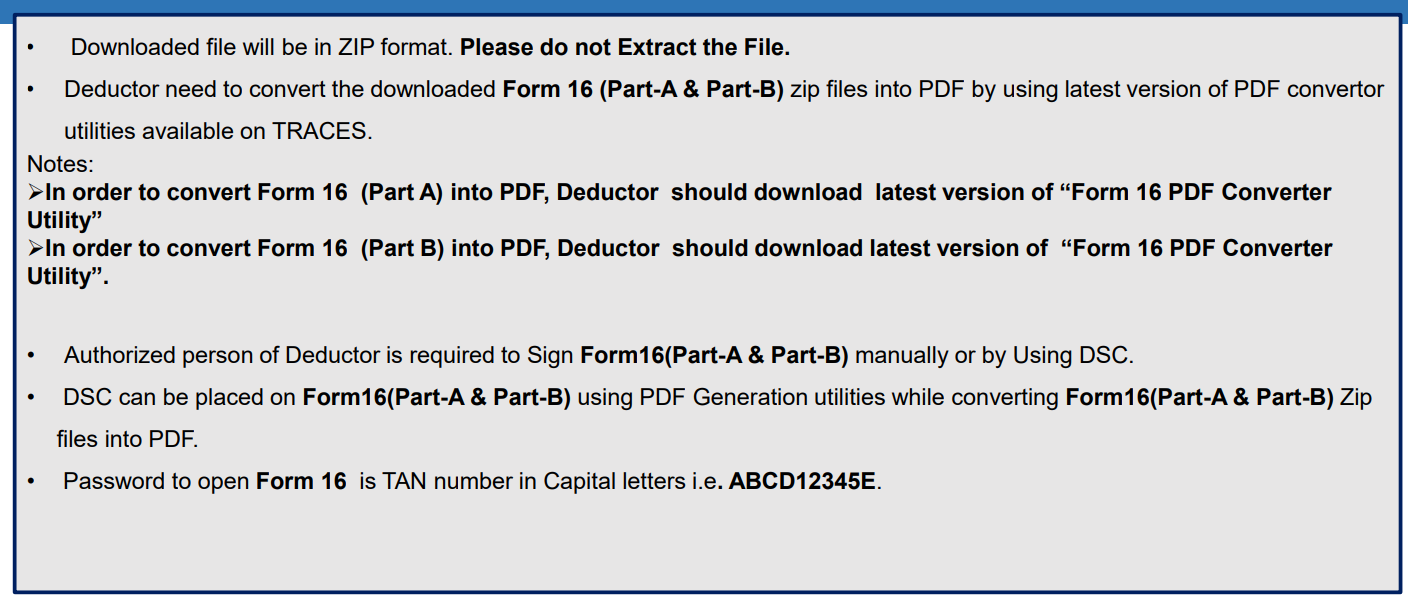
3. Brief steps for downloading Form 16 (Part A & Part B)
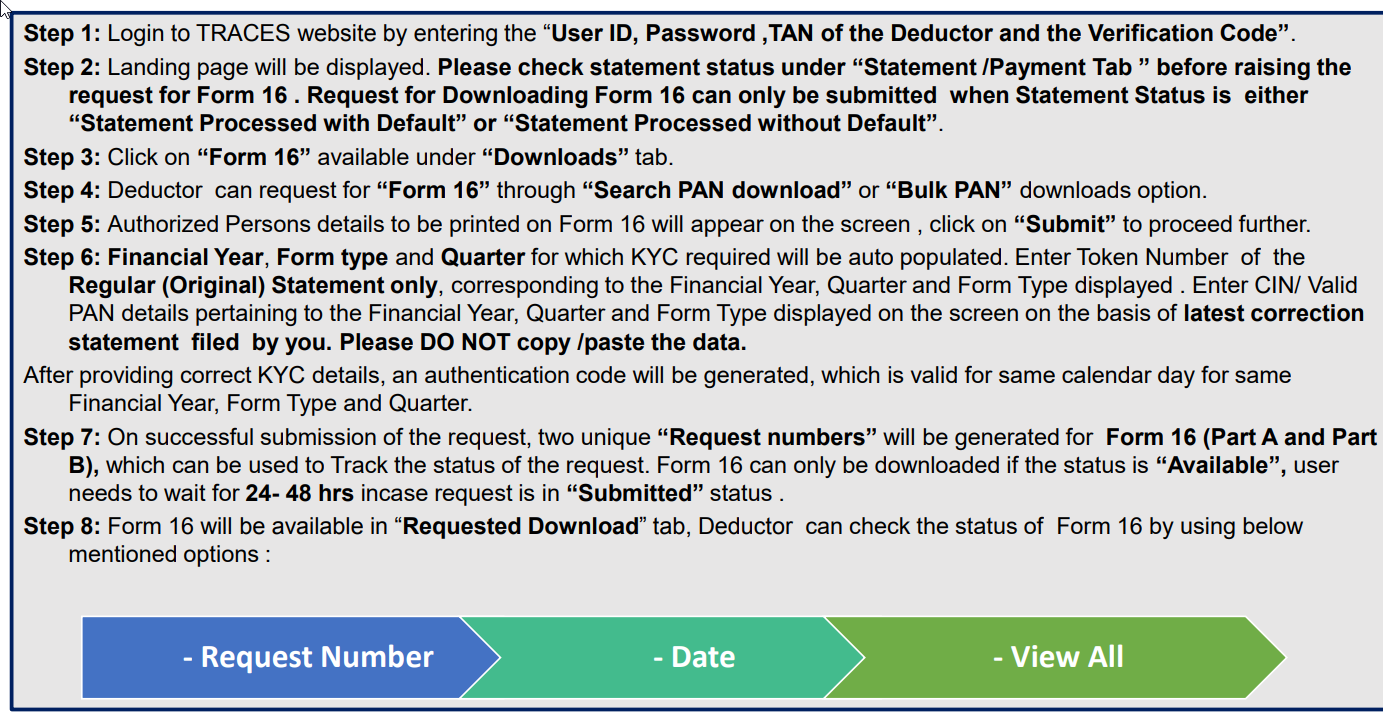
4. Brief steps for downloading Form 16 (Part A & Part B) (contd.)
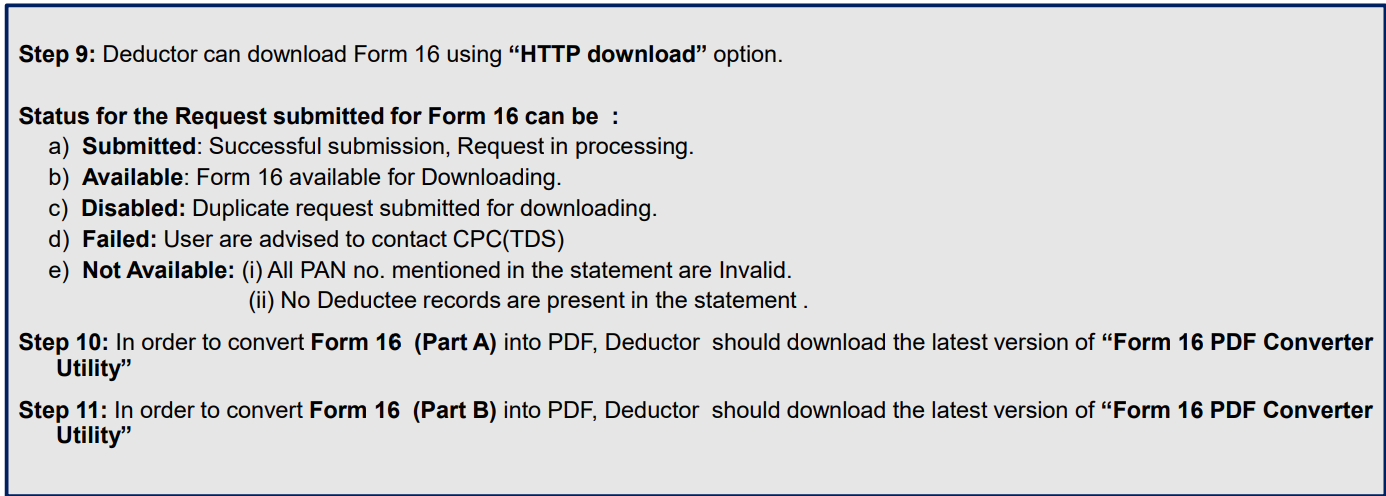
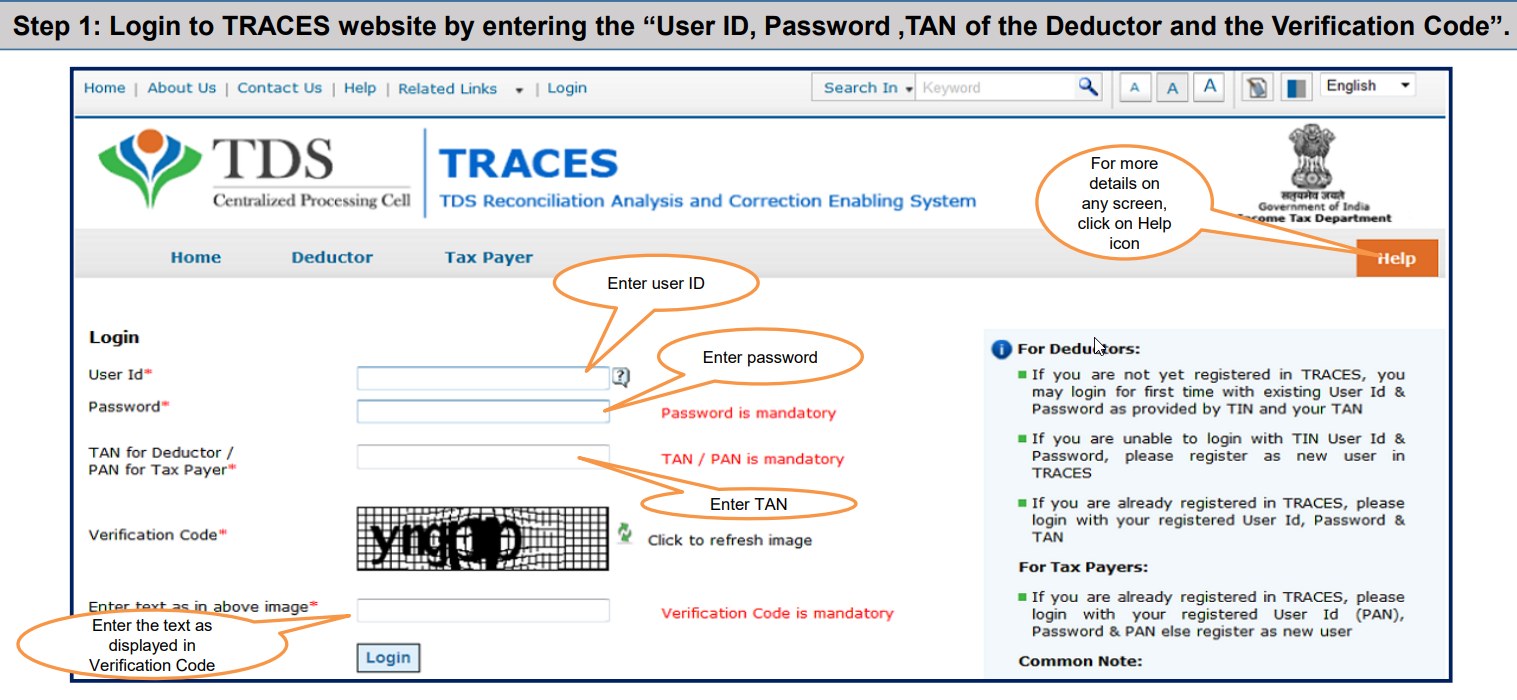
5. Pictorial guide for downloading Form 16 (Part A & Part B)
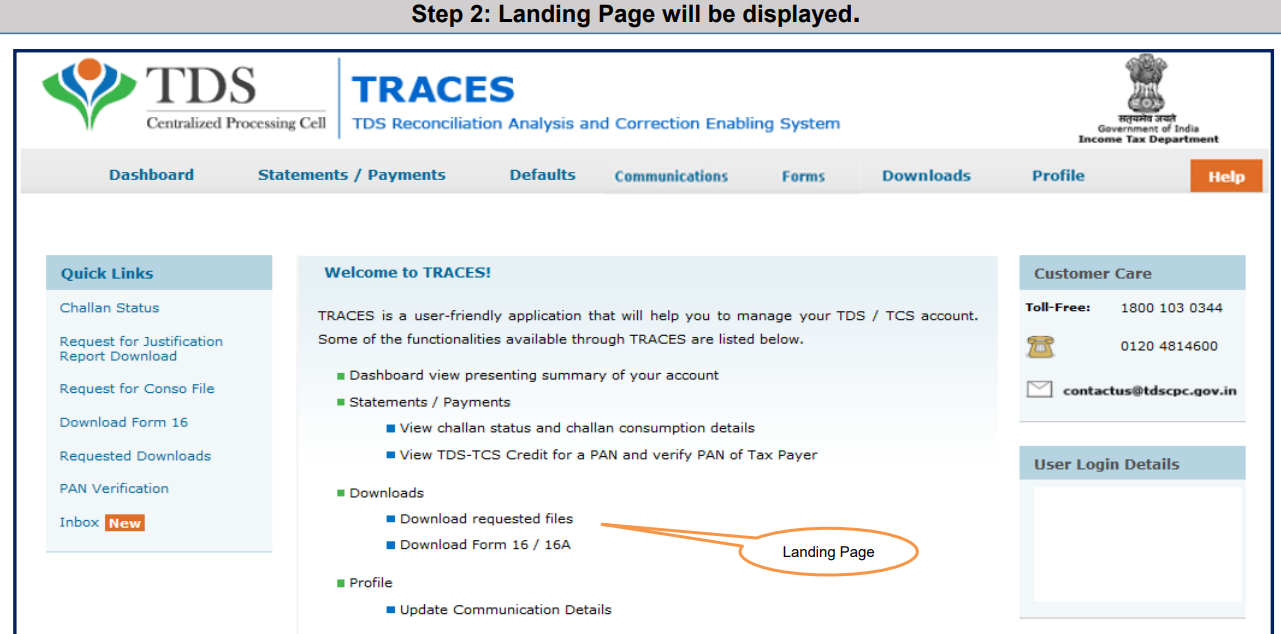
6. Pictorial guide for downloading Form 16 (Part A & Part B) (contd.)
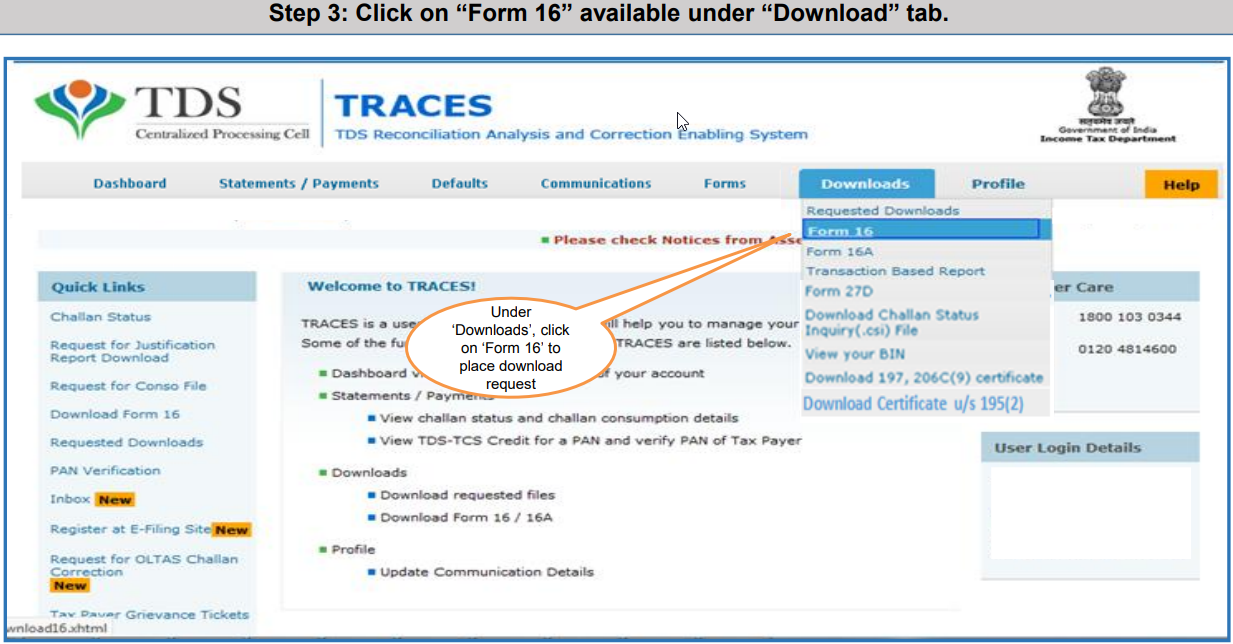
7. Click the Form 16 option:
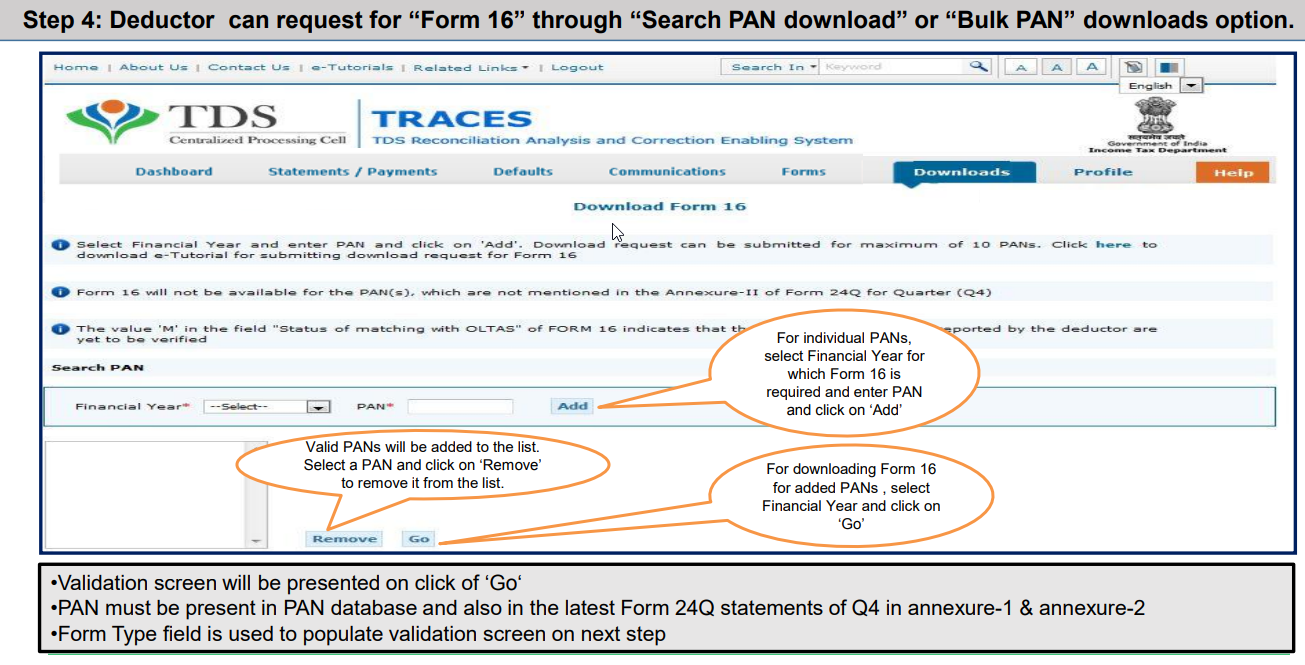
8. The deductor can request Form 16 through the Search PAN Download tab.
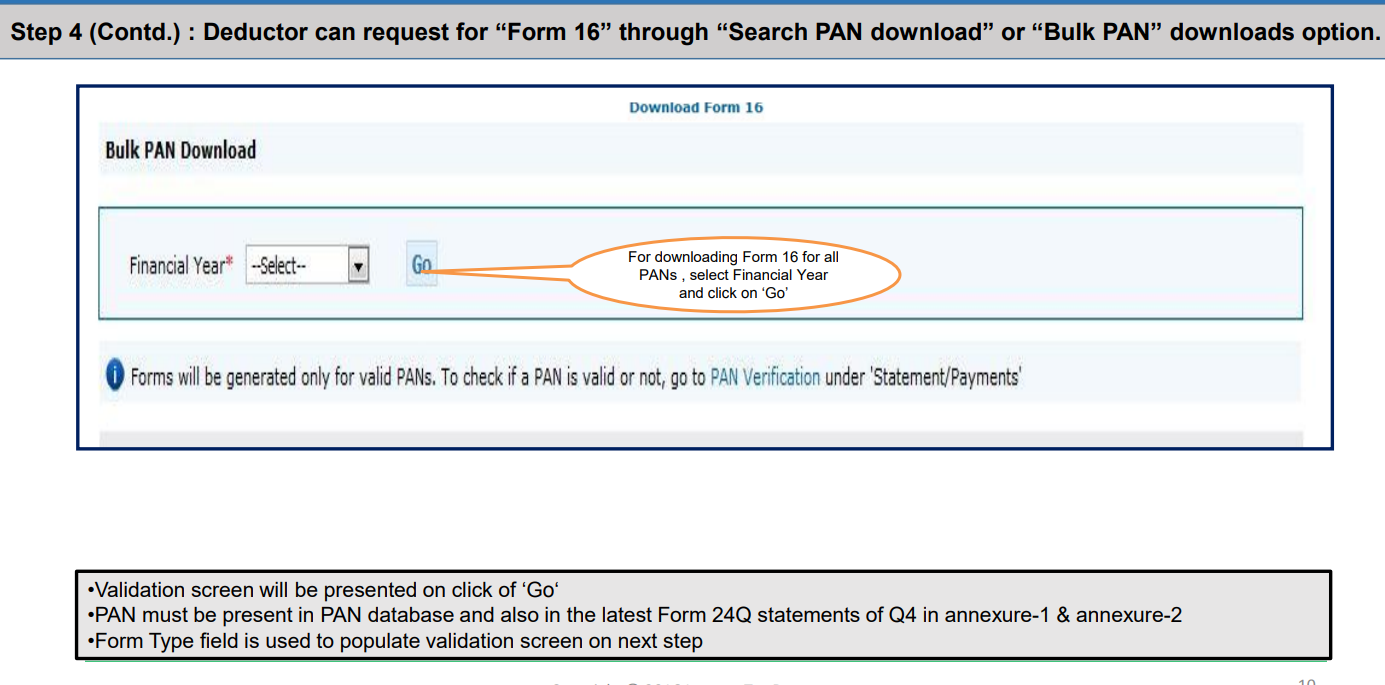
9. The deductor can request Form 16 in bulk through the Bulk PAN Download tab.
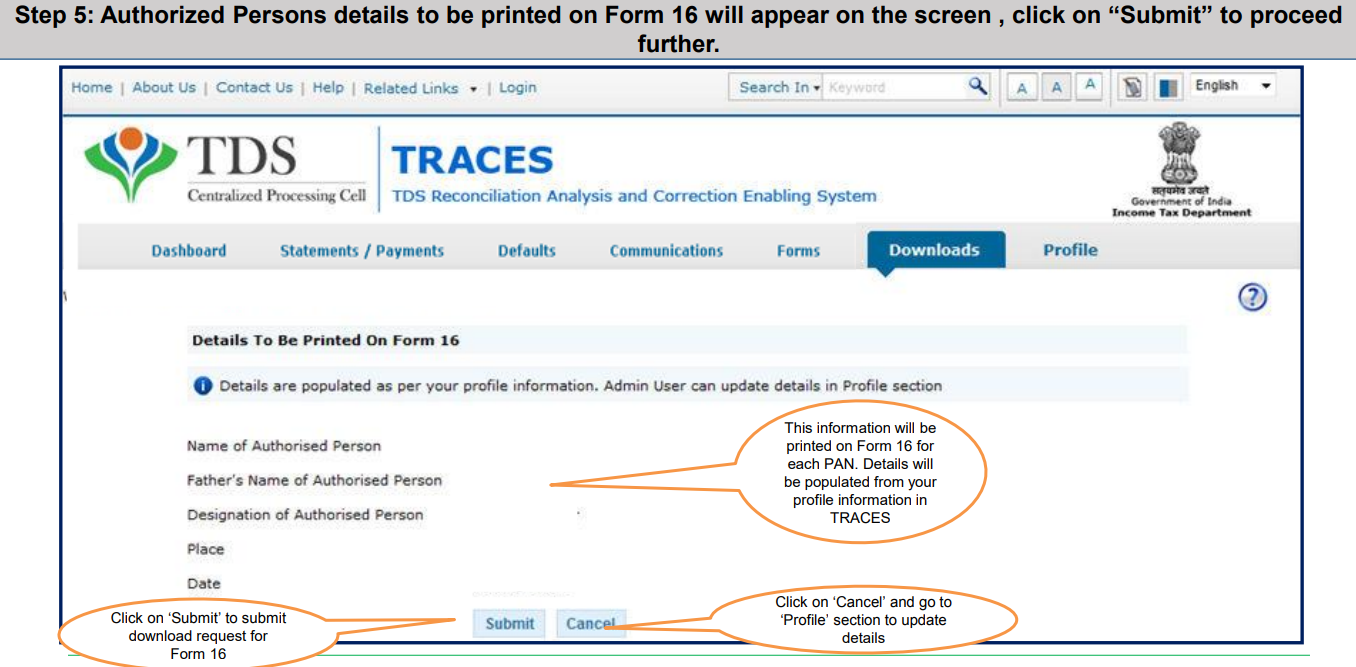
10. Click "Submit" in the update profile section.
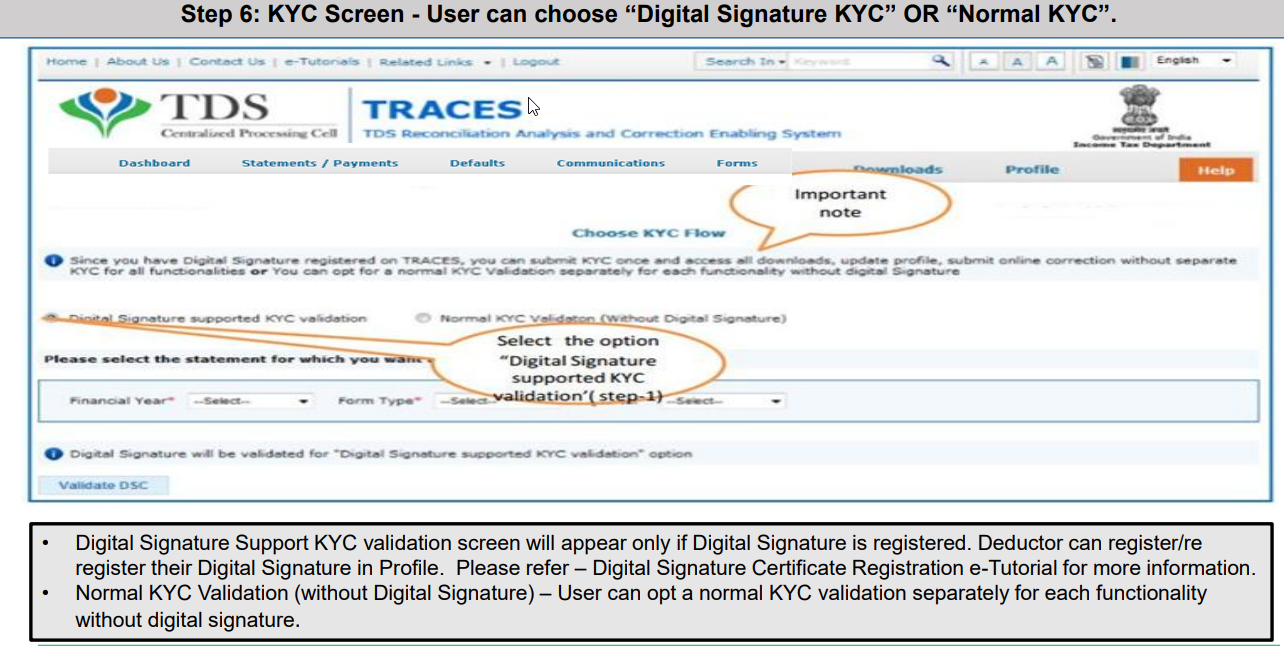
11. Update KYC through Normal KYC or Digital KYC.
12. Navigate to the quarter and validate the DSC:
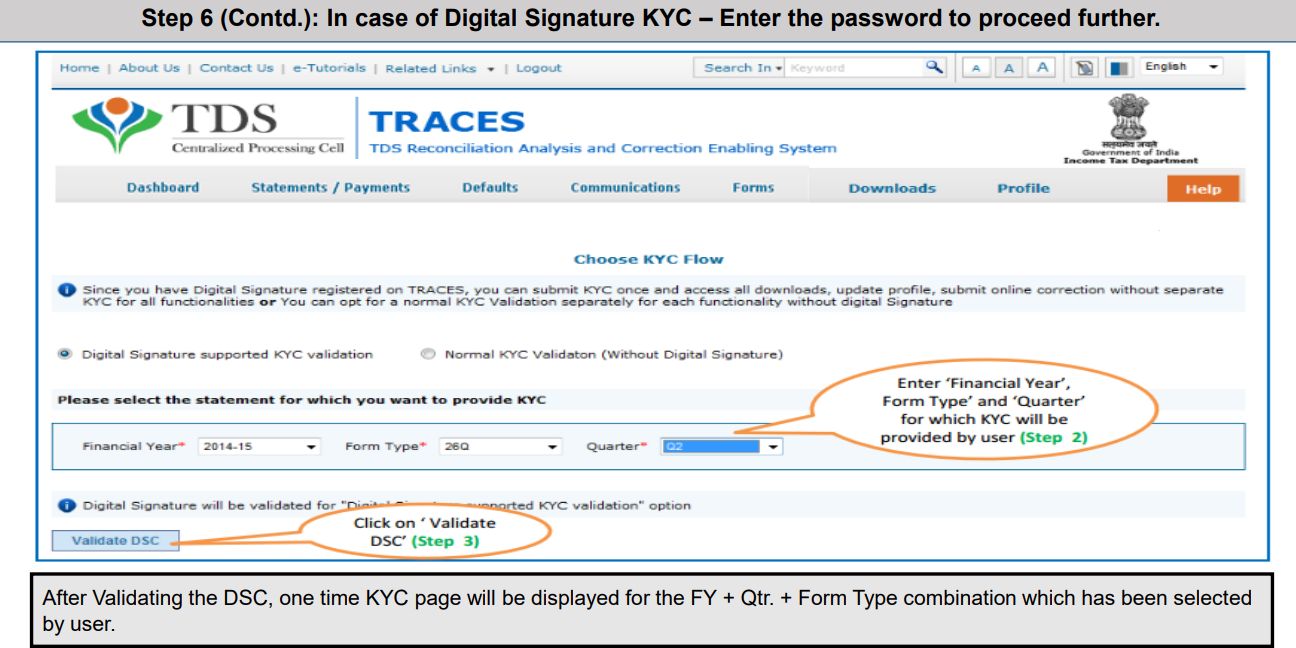
13. Enter the password to proceed further:
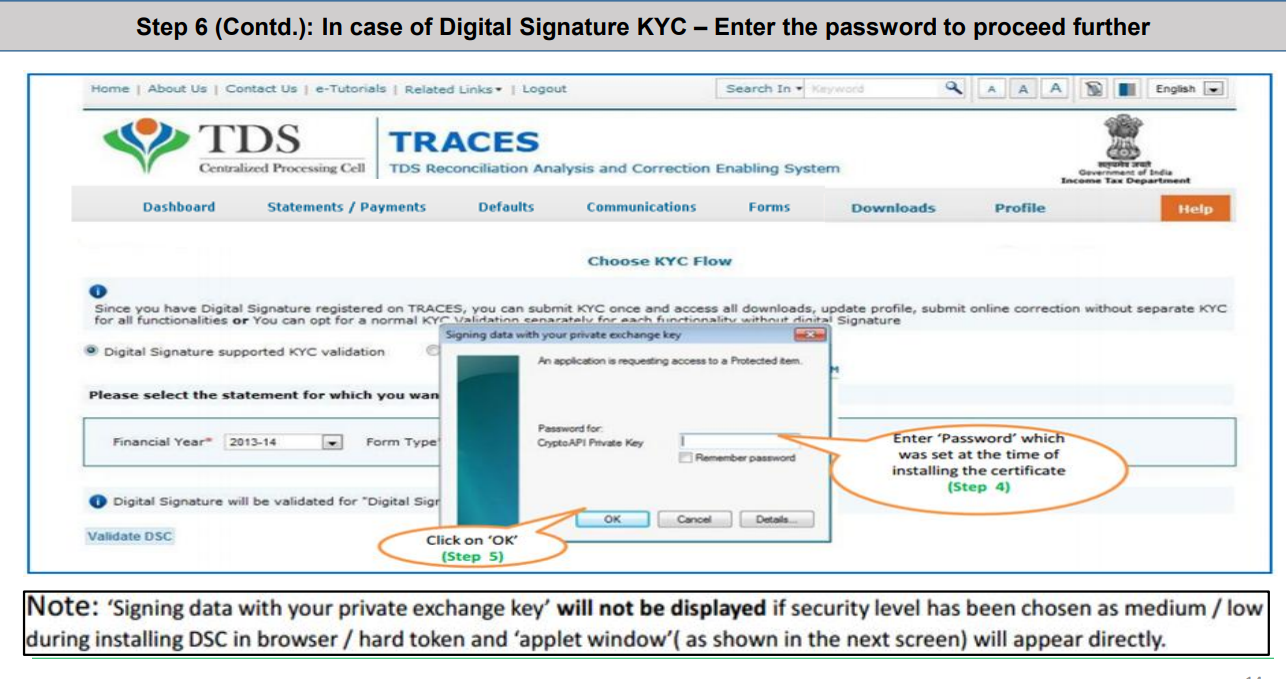
14. Select the Digital Signature Certificate and sign.
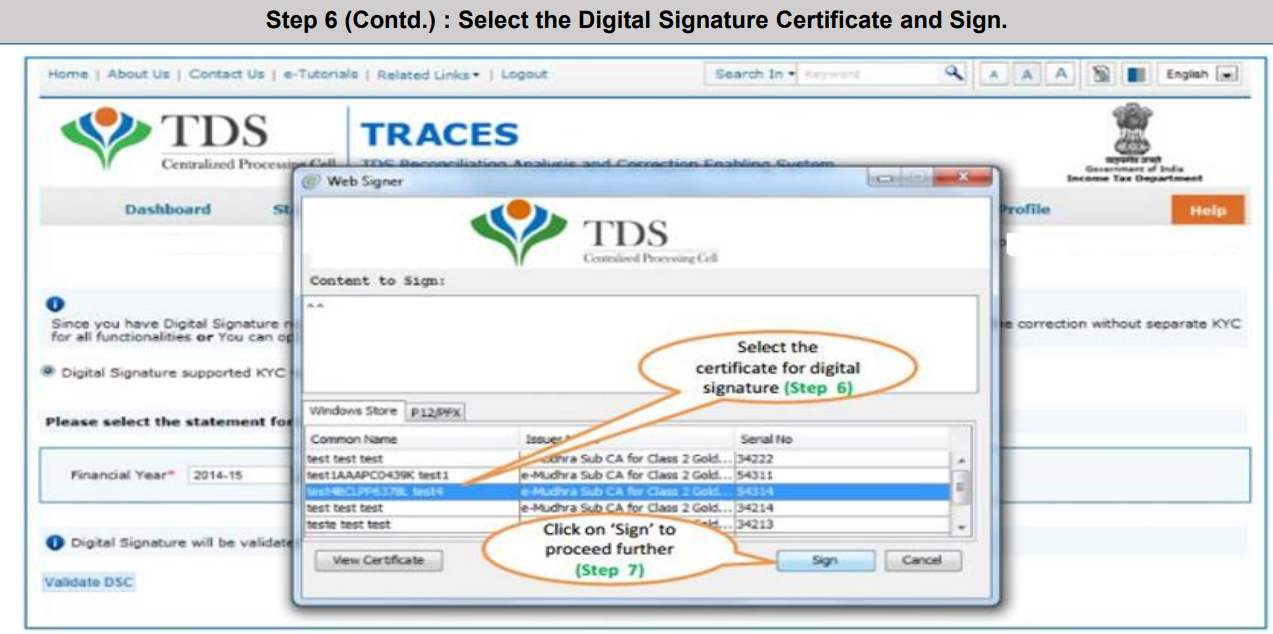
15. Enter the token number:
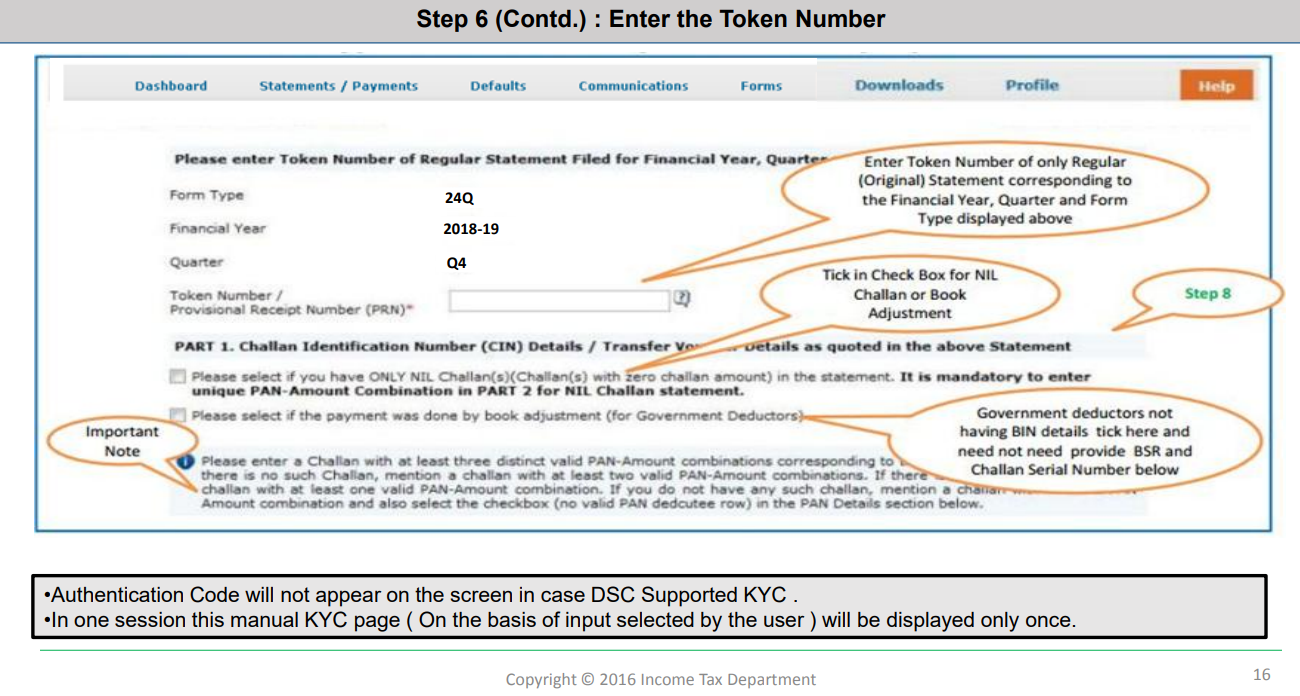
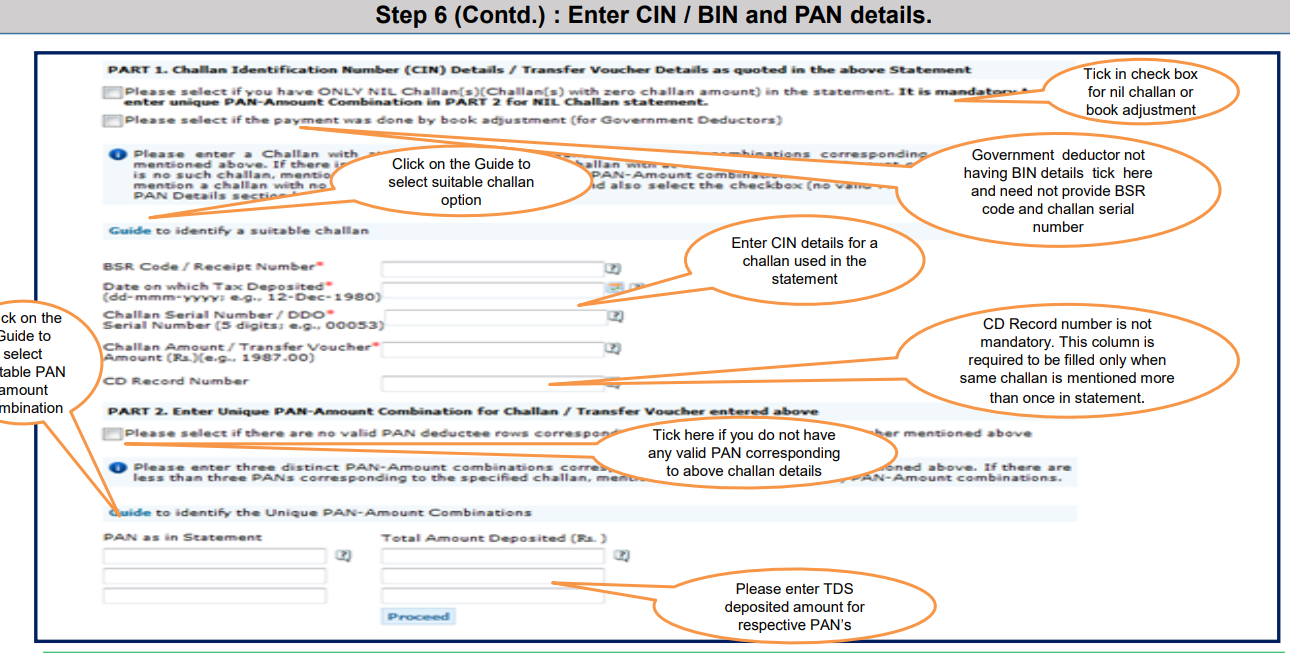
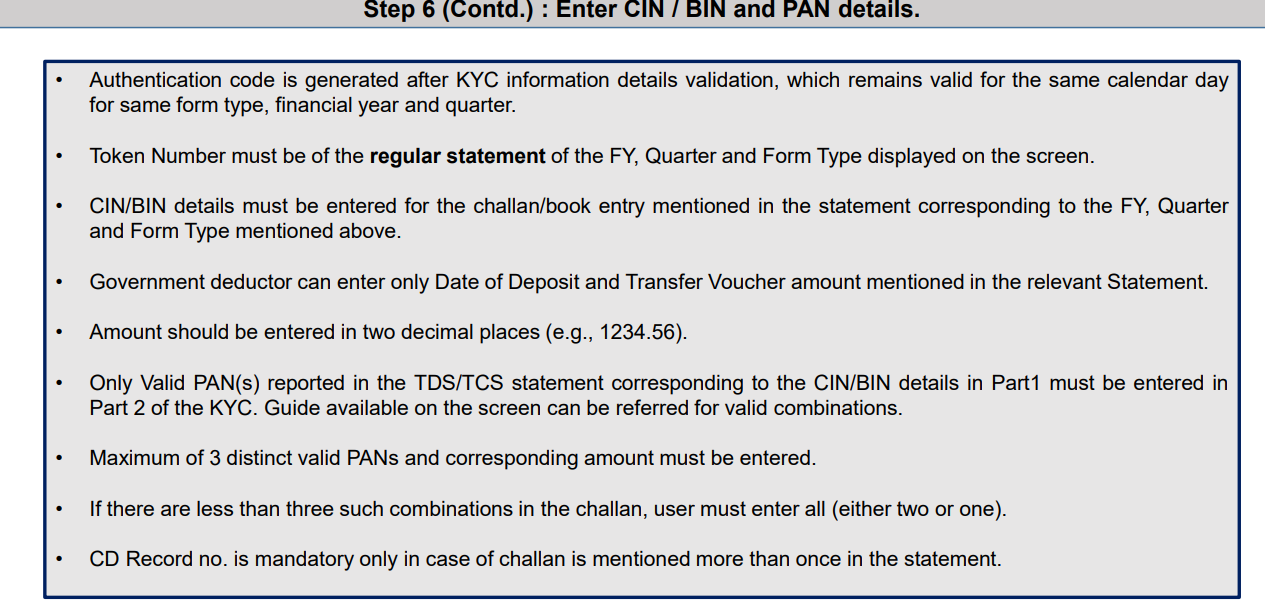
16. Enter the PAN details:
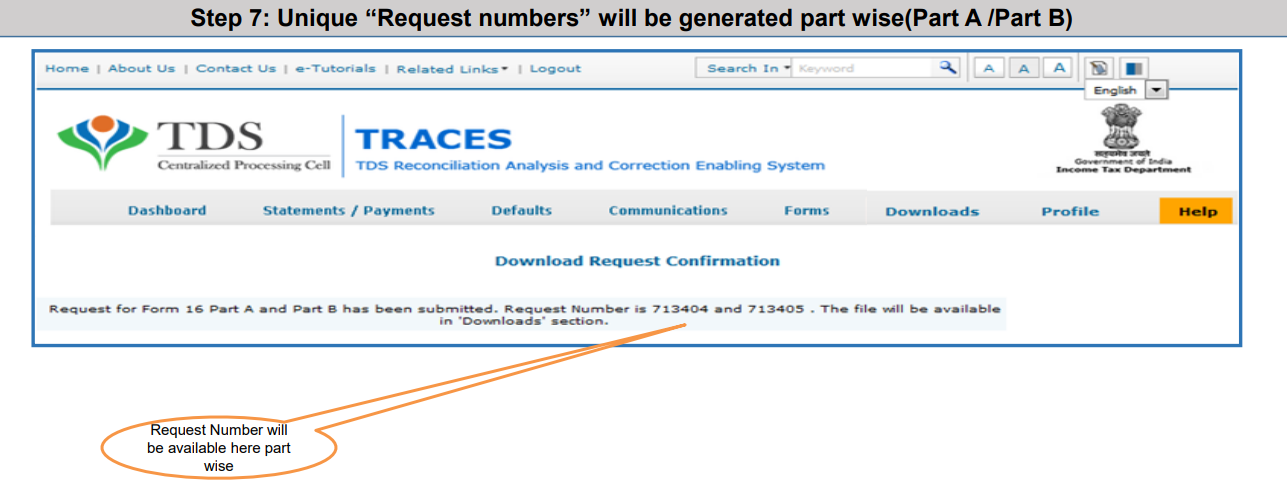
17. A unique request number is generated for each part of Form 16.
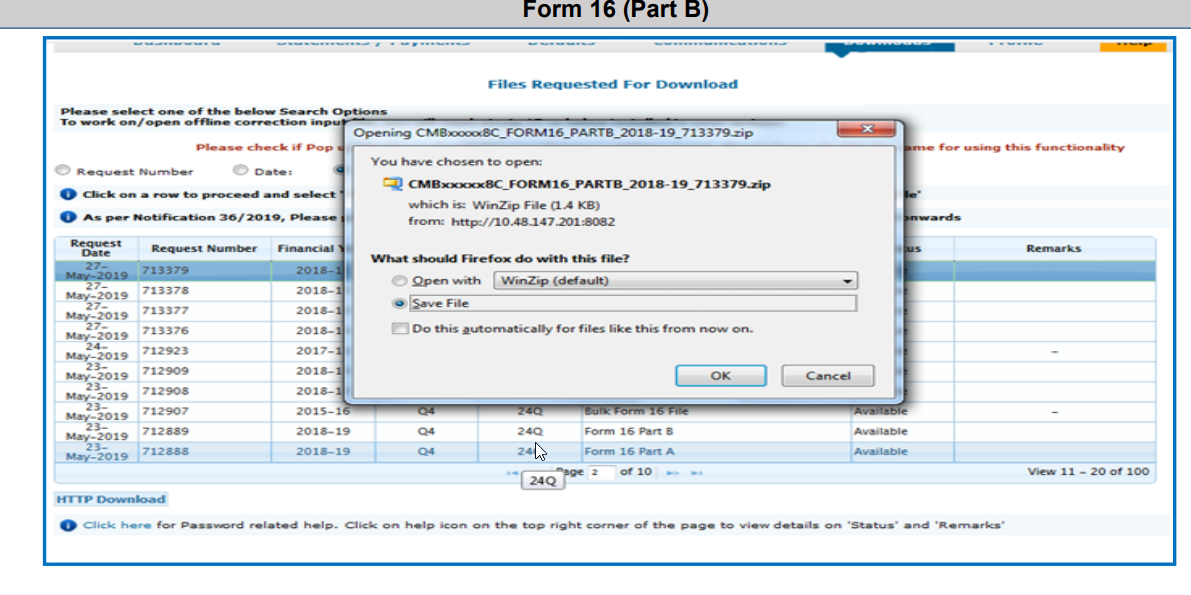
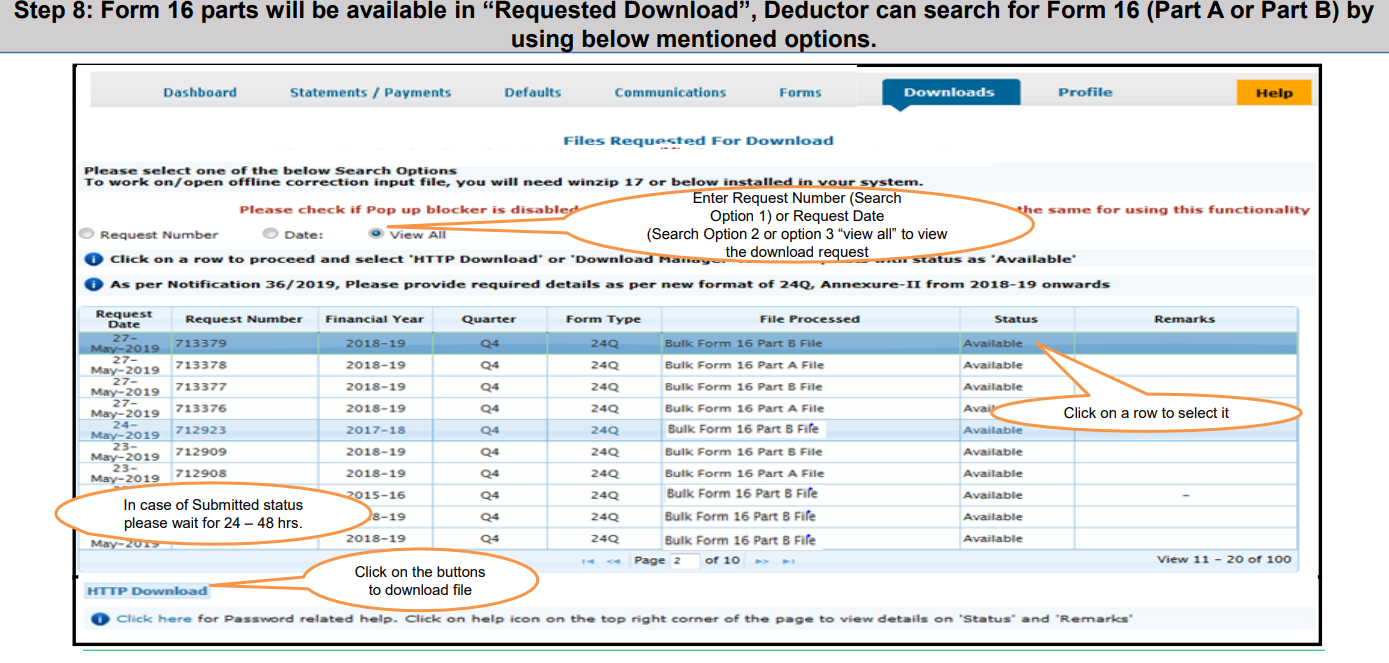
18. You can track the requested download:
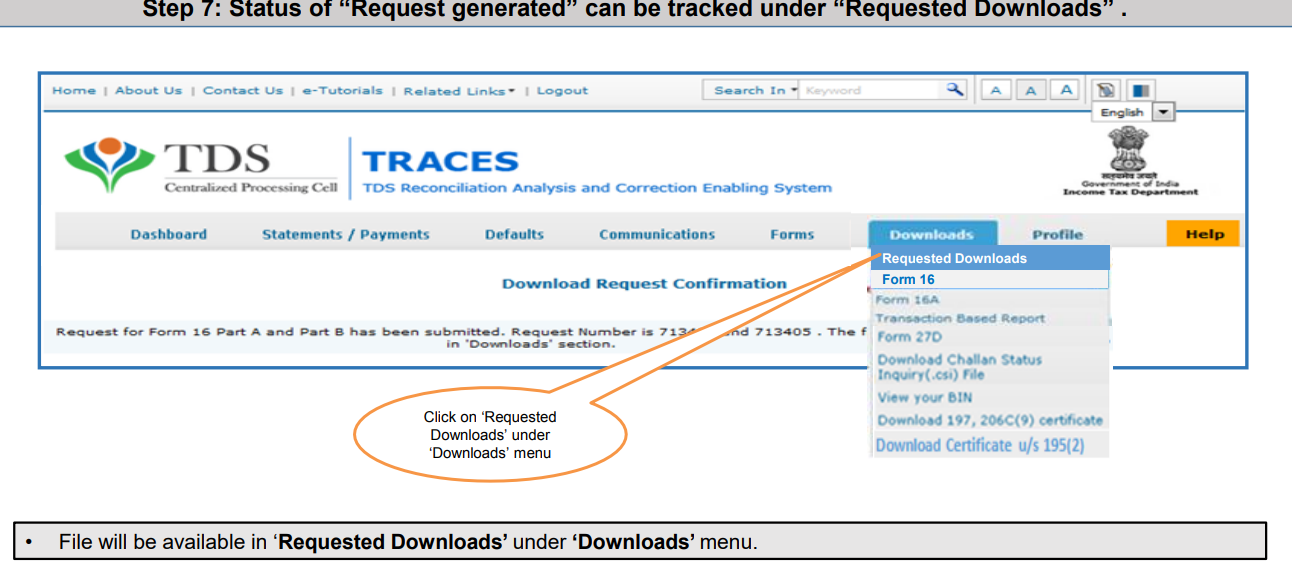
19. You can check the status:
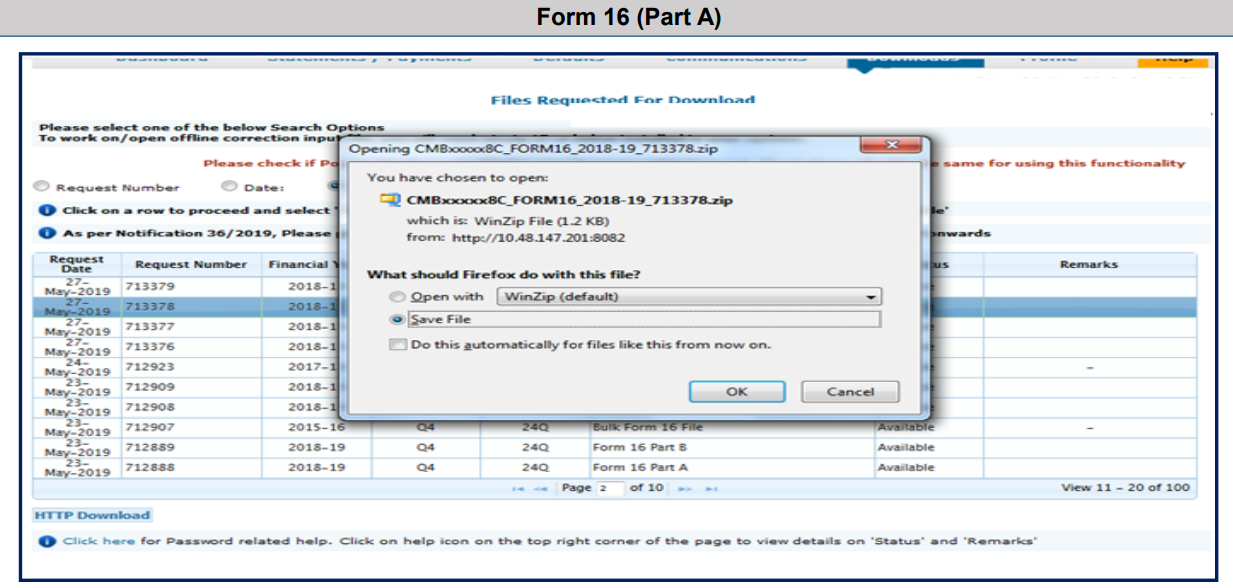
20. You can save Form 16 Part A.
21. You can save Form 16 Part B: