How-to
LOP report
LOP, short for Loss of Pay, refers to the number of unpaid days for an employee due to absence, unapproved leaves, or other criteria defined in your organization's attendance policy. The LOP Report in HRStop provides a comprehensive summary of LOPs for all employees, giving you clear visibility into each employee’s attendance status across a selected time period.
Key highlights
- "P" indicates Present
- "A" indicates Absent
- "L" indicates Leave
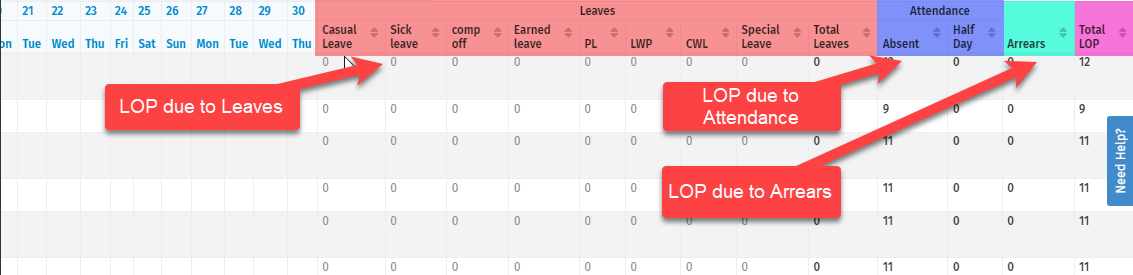
Color coding helps you quickly identify the type of LOP:
- Pink – LOP due to Leave
- Blue – LOP due to Attendance
- Green – LOP due to Arrears
Follow these steps to view the LOP report of employees:
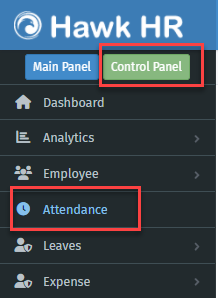
- Navigate to Control Panel → Attendance.
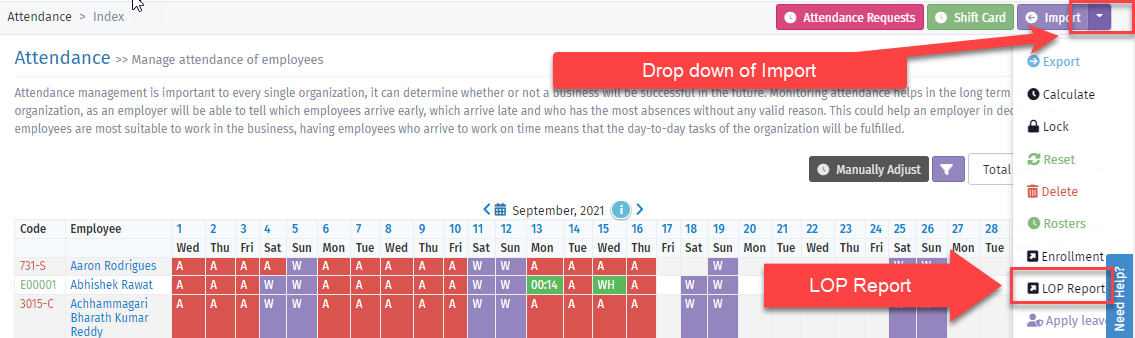
- Click the drop-down on the Import button (in the page navigation bar) and select the LOP report option. A new page opens, showing the list of employees with their attendance and LOP details.
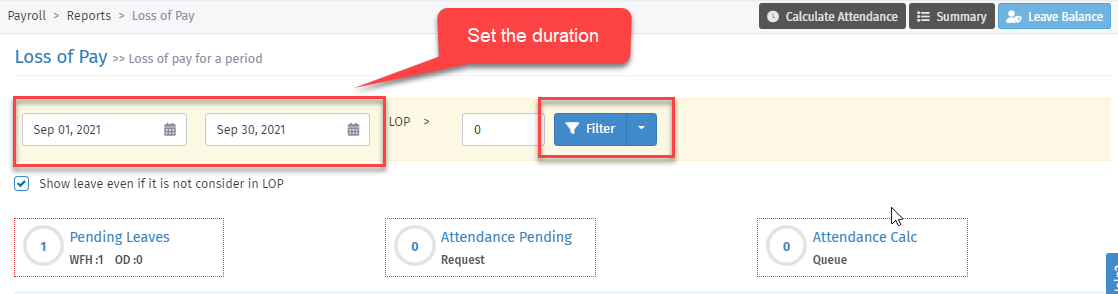
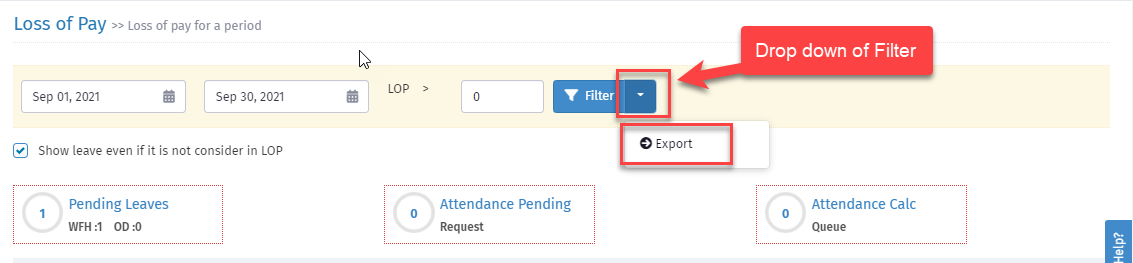
- Select the Duration for which you want to see the attendance and click Filter to filter the results by the selected parameters.
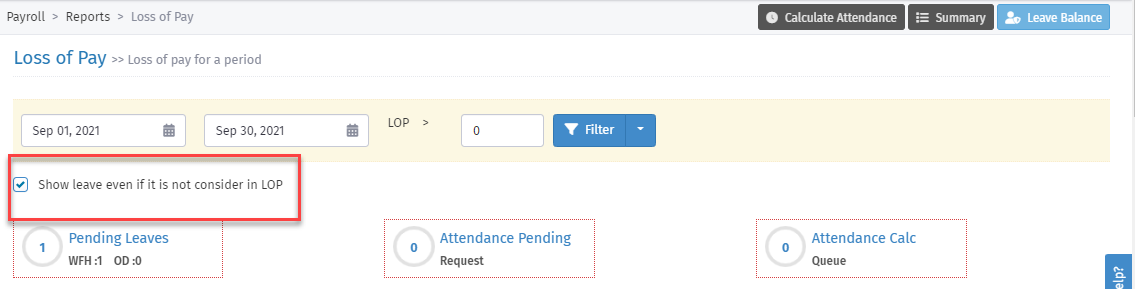
- To see Leaves even if they are not considered in LOP, select the checkbox.
- Scroll right in the list to see LOP due to Leaves (highlighted in pink), Attendance (highlighted in blue), and Arrears (highlighted in green).
- To export the LOP sheet to Excel, click the drop-down next to Filter and click Export.