How-to
Update the exit date on the employer EPFO portal
Follow these steps to update the exit date on the EPFO portal:
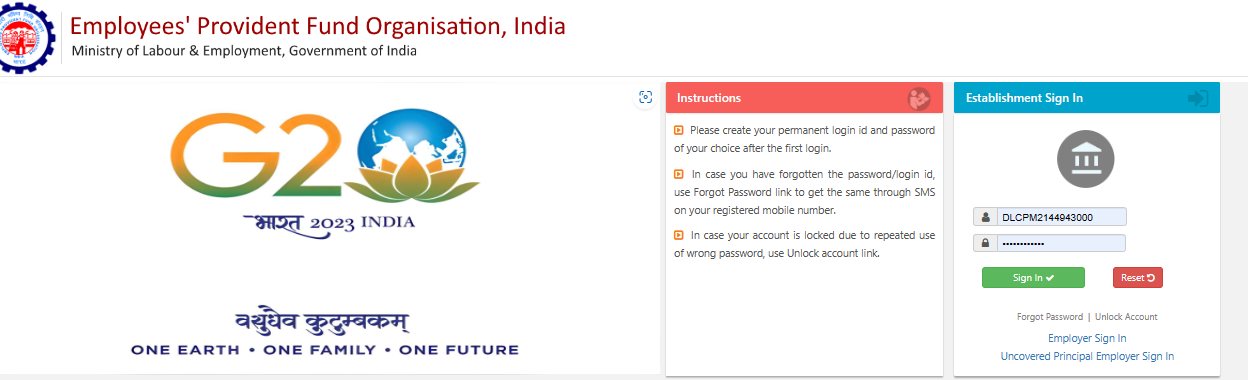
1. Log in to the employer EPFO portal.
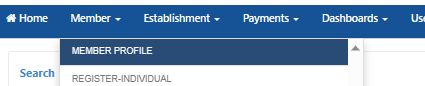
2. Go to the "Member" option and click "Member Profile".
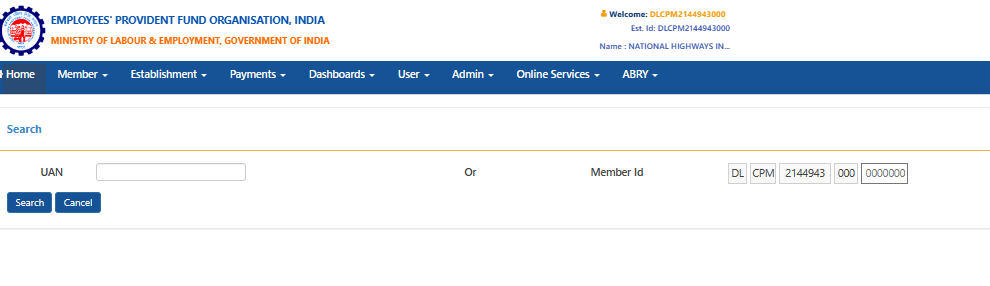
3. On the page that opens (shown below), search by the employee's UAN.
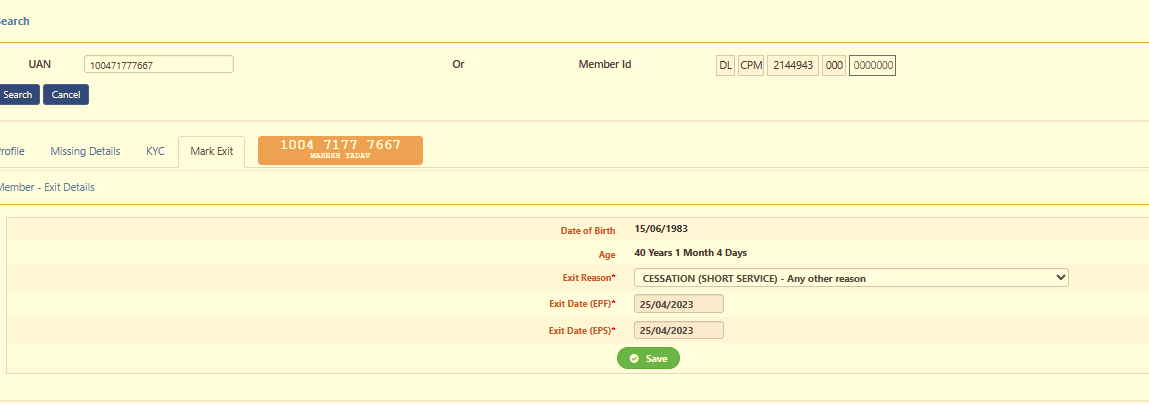
4. On the page that opens (shown below), click "Mark Exit" and select "CESSATION (SHORT SERVICE)-Any other reason" from the Exit Reason* drop-down → Exit Date(EPF)* "Mark exit date of employee" → Exit Date (EPS) "Mark exit date of employee" → click "Save".
5. A new page opens, as shown below.
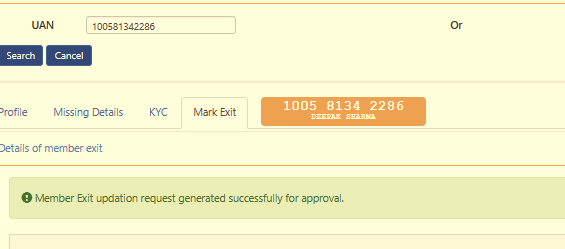
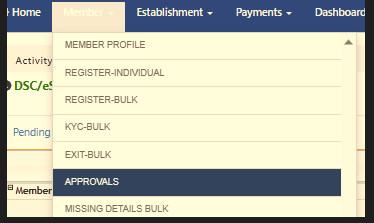
6. Go to the "Member" option and click "Approval". A page like the one below is shown.

7. Click "Approve". A pop-up window like the one below appears.
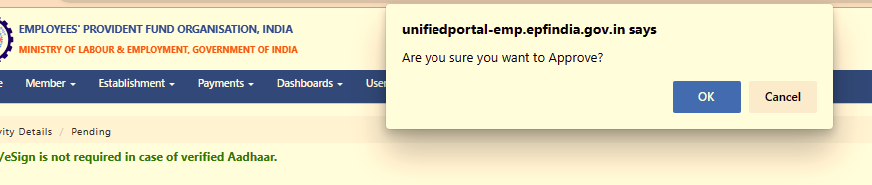
8. Click "OK". A new page like the one below opens.
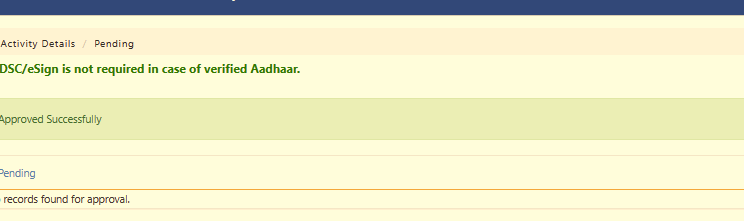
9. After approval, go to the "Member" option and click "Member Profile". A new page like the one below opens.
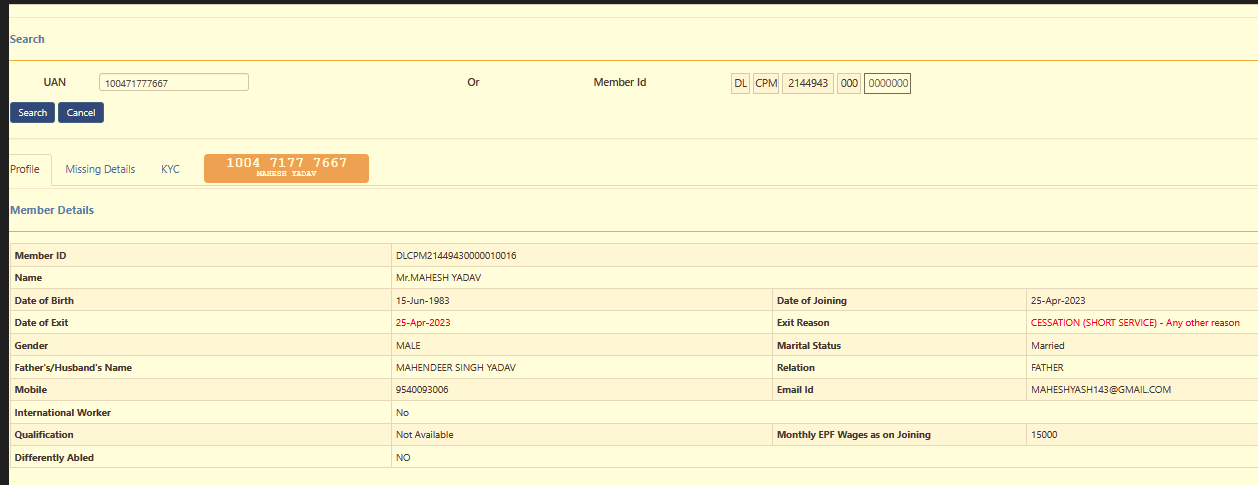
10. You can see the updated Date of Exit and Exit Reason in red.