How-to
Learn more about Slack
On this page

Why integrate with Slack?
Collaborating on Slack? Streamline your HR workflow effortlessly! Connect HRStop with Slack to receive notifications in your preferred channels (#hr, #general).
Picture this: Your HR team uses Slack for seamless communication, and HRStop for hire-to-retire HR/payroll management. The integration supercharges productivity, transforming your workplace into an efficient hub of success.
Handle job applications, leave requests, and team communication seamlessly. All relevant notifications, from leave applications/ approvals to birthday reminders, are consolidated in Slack channels. Say goodbye to scattered communications and hello to a connected and productive workspace!
Benefits of Slack
- Real-time notifications: Receive instant updates on important HR and employee-related activities directly in your Slack channels.
- Effortless collaboration: Foster collaboration among your team members by enabling them to share files, updates, and feedback in real time.
- Automated workflows: HRStop's integration with Slack ensures that you can automate notifications, reminders, and approvals, allowing your team to focus on strategic initiatives.
- Increased productivity: Integrating Slack with HRStop supercharges HR communication, boosts employee engagement, and transforms your workplace into a seamless, efficient hub of success!
Integrating HRStop and Slack
To integrate HRStop with Slack:
- Open your HRStop portal.
- Navigate to Control Panel → Settings → Integrations.
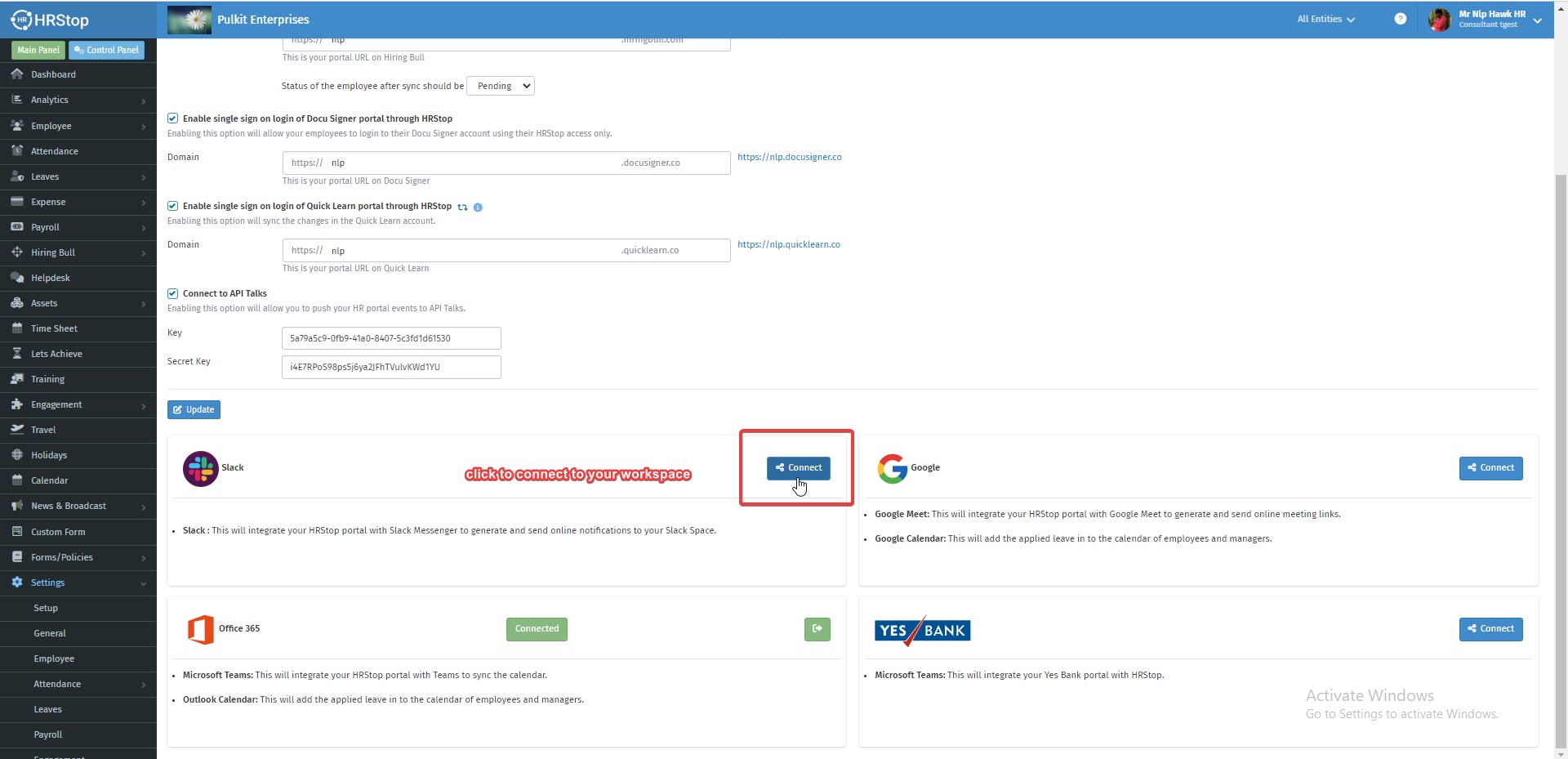
- On the Integrations page, click Connect under the Slack tab/section.
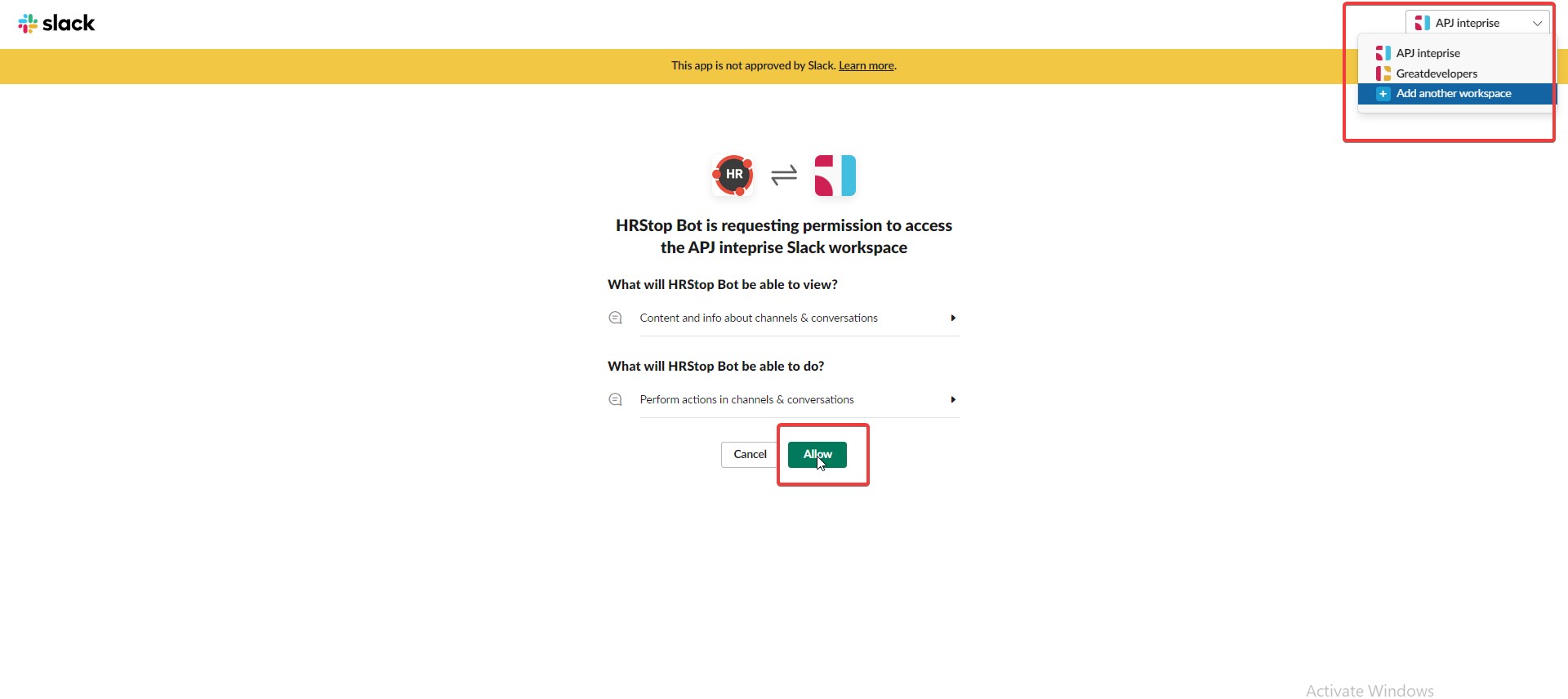
4. Click Allow to grant HRStop Bot access to the Slack workspace.
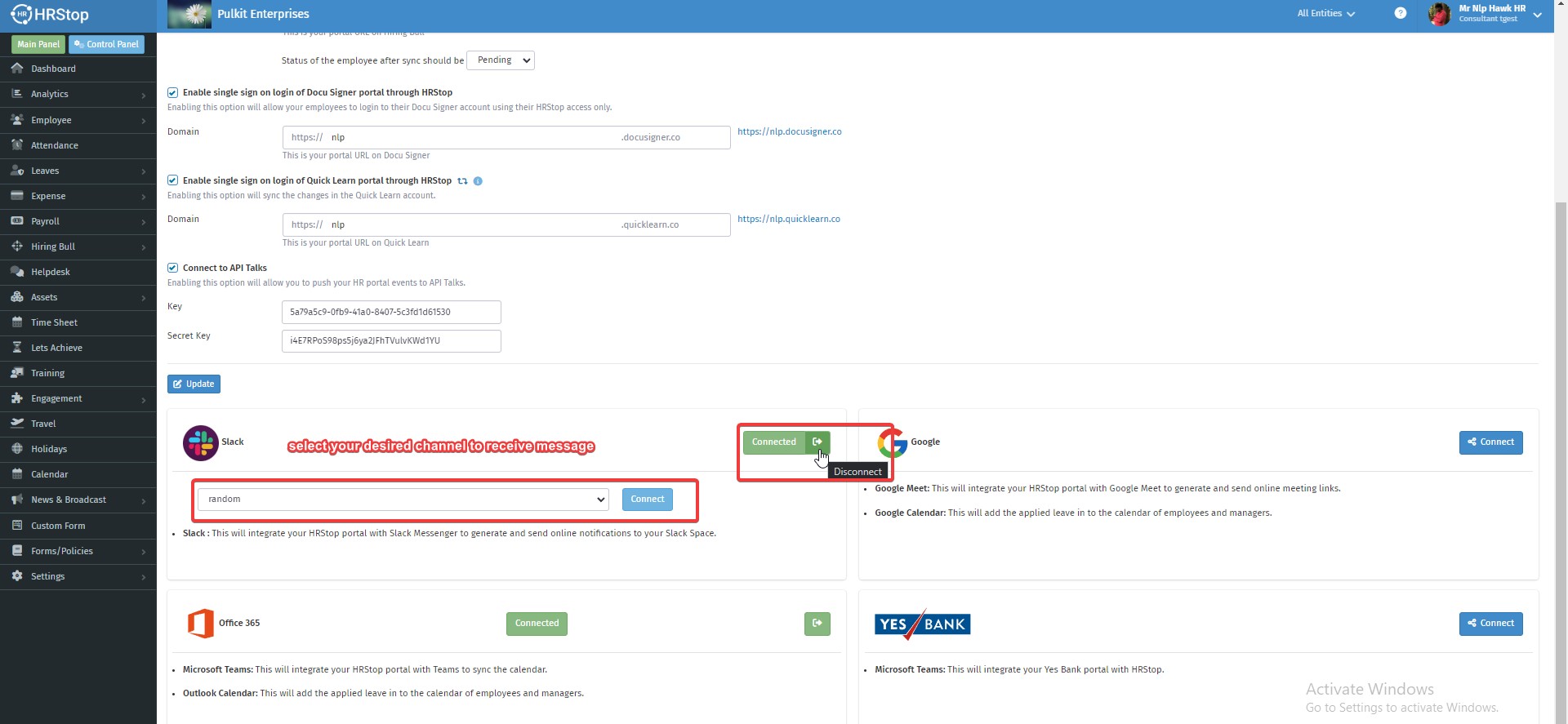
5. Choose the Channel to which you want to push notifications.
Note: You must be logged in, on your system, to the Slack workspace you want to connect with HRStop_Bot.
Receiving notifications
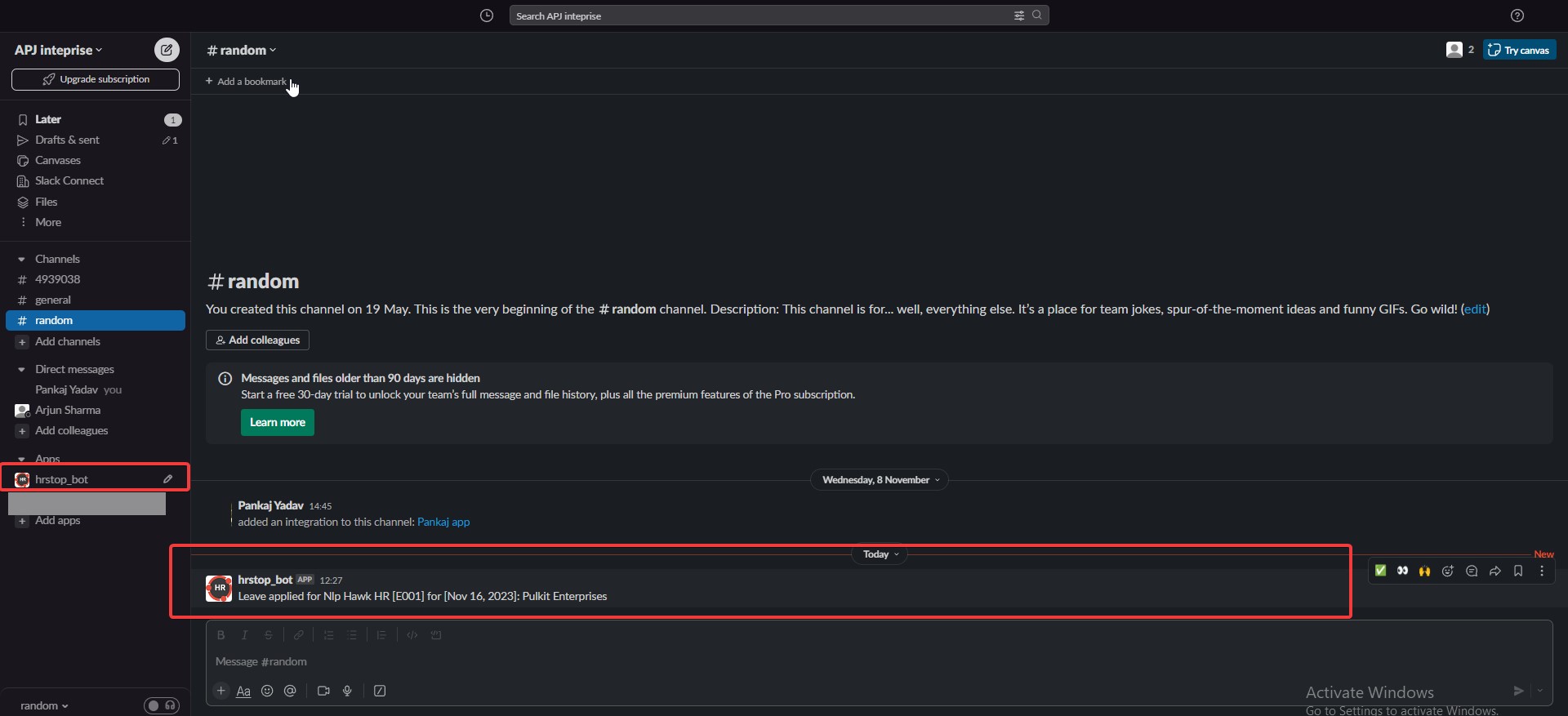
Once the integration is complete, you will start receiving notifications in your Slack channel.
Disabling the integration
To disable the integration, follow these steps:
- Open your HRStop portal.
- Navigate to Control Panel → Settings → Integrations.
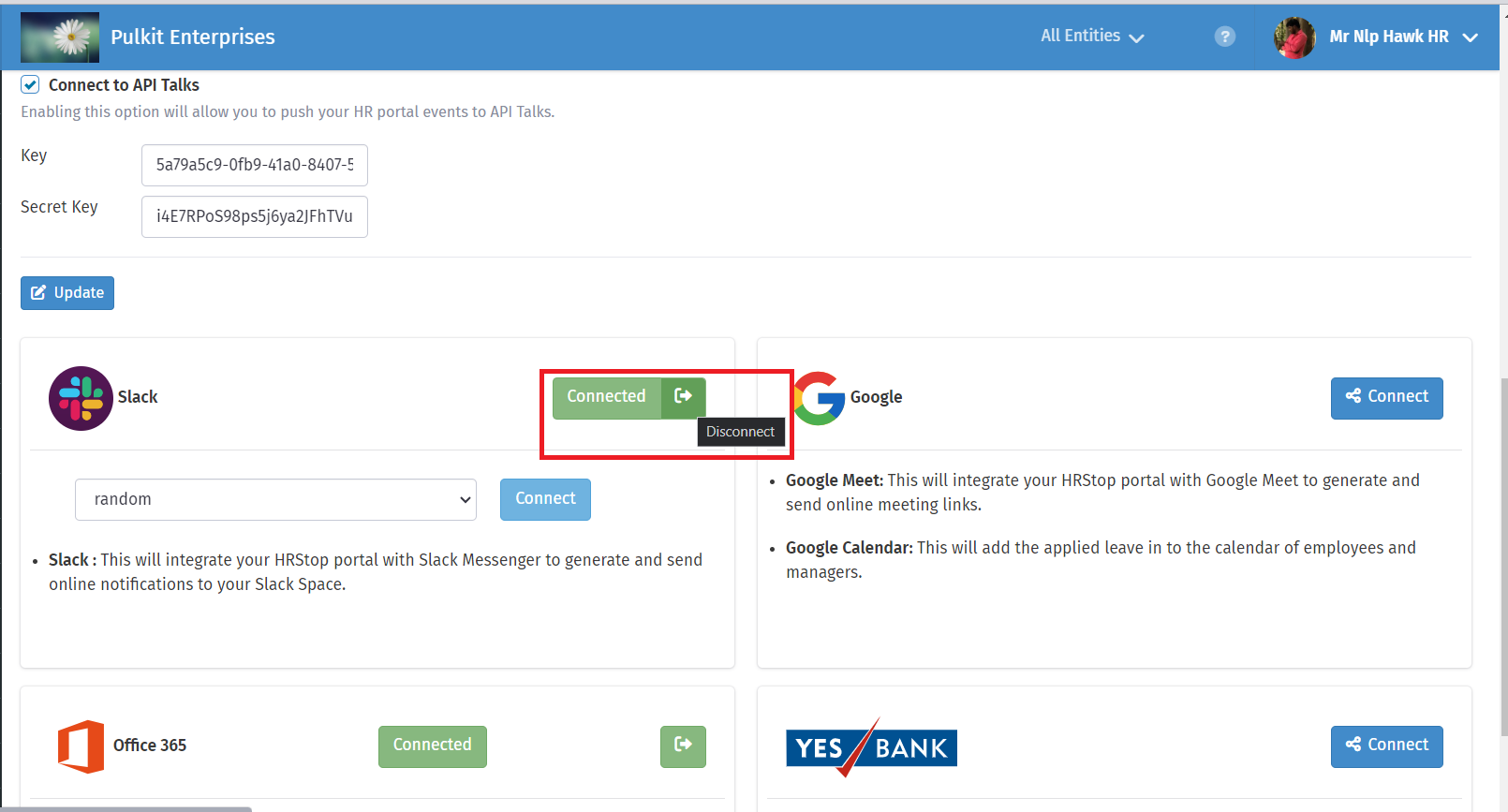
- On the Integrations page, click Exit under the Slack tab/section to disable the integration.