How-to
Set up Pay Later for hold cases
Follow these steps to enable the Pay Status setting:
Enable the setting: Navigate to Control Panel → Settings and enable the option "Enable Pay Status option for Payslips while running payrolls", then click Update Details.
1. Enabling this option lets you change the pay status to Pay Later, which means the payslip is not paid in the immediate payroll but is reserved for full and final settlement.
Follow these steps to mark a particular employee as Pay Later:
1. Navigate to Control Panel → Payroll → Payrolls.
2. A new page opens.
3. Select the payroll month.
4. Search for the employee using the search bar on the right side.
5. A new page opens, as shown below:

6. Click the "Update Pay Status" option on the right side.
7. A small window opens, as shown below:
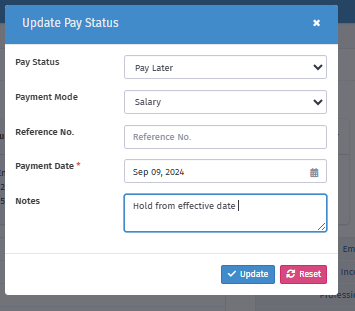
8. Pay Status: Select the "Pay Later" option from the drop-down.
Payment Mode: Select the payment mode as required; generally, you can select "Salary"
Reference No.: Enter a reference or skip this option.
Payment Date: Enter the payment date or the effective hold date.
Note: Enter any note for this employee.
Finally, click "Update" to save the "Update Pay Status".