How-to
Troubleshoot common biometric issues
On this page
Purpose
This article helps you identify and resolve common issues with biometric attendance devices integrated with HRStop. These issues may prevent punch data from syncing correctly and can usually be fixed with basic checks and configuration steps.
Who should read this
- IT/Admin teams managing biometric setup
- HR/Admin teams handling attendance discrepancies
- Biometric vendors assisting in setup or support
When to use this
- Biometric device is not syncing punches to HRStop
- Device shows as inactive or disconnected
- HRStop is not receiving punches for specific users
- Device configuration was recently changed
Configuration checklist
Confirm the following ADMS and Ethernet settings with your IT team to ensure correct device setup.
ADMS settings:
- Server Mode: ADMS
- Enable Domain Name: OFF
- Server Address:
65.20.79.19(Confirm with HRStop team if different) - Server Port:
84(Confirm with HRStop team if different) - Enable Proxy Server: OFF
Ethernet settings:
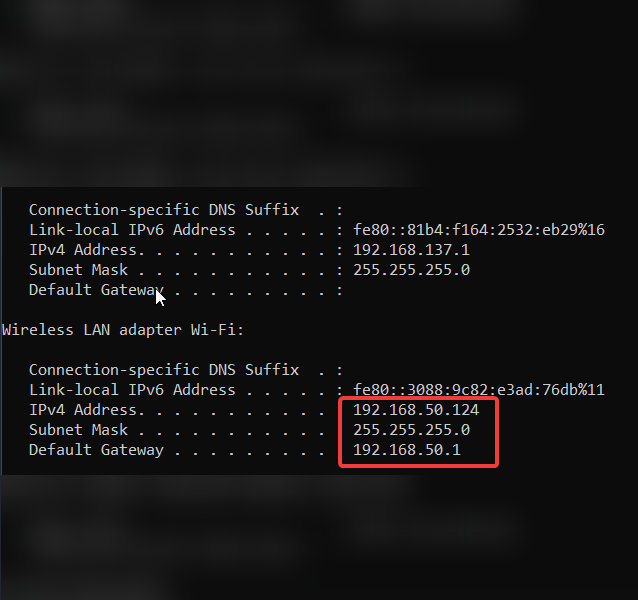
- IP Address: (Mandatory – must be defined)
- Subnet Mask: (Mandatory – must be defined)
- Gateway: (Mandatory – must be defined)
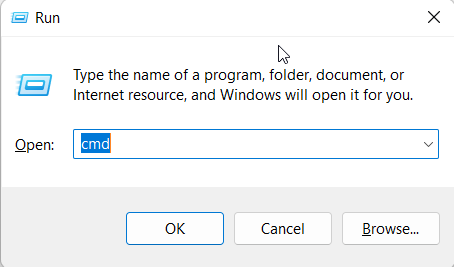
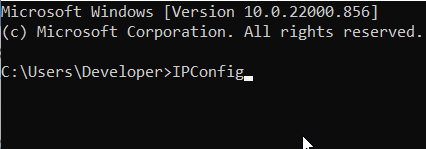
You can find your IP address by following these steps on Windows:
- Press Windows + R.
- Type
cmdand click OK. - Type
ipconfigand press Enter. - Note down your IP, Subnet Mask and Gateway values.
Verification
- Check the biometric internet connection:
- Confirm that your biometric device is connected to the internet.
- If it is connected, a small 'e' or 'globe' icon appears in the top-right corner of the device.
- Check the enrollment number
- Confirm that employees’ enrollment numbers match their biometric user codes.
- You can get the list of employee enrollment numbers in HRStop at Control Panel → Analytics → Attendance → Enrollment.
Troubleshooting
If all the above configurations are correct and attendance is still not reflected in your portal, check the following with your IT team:
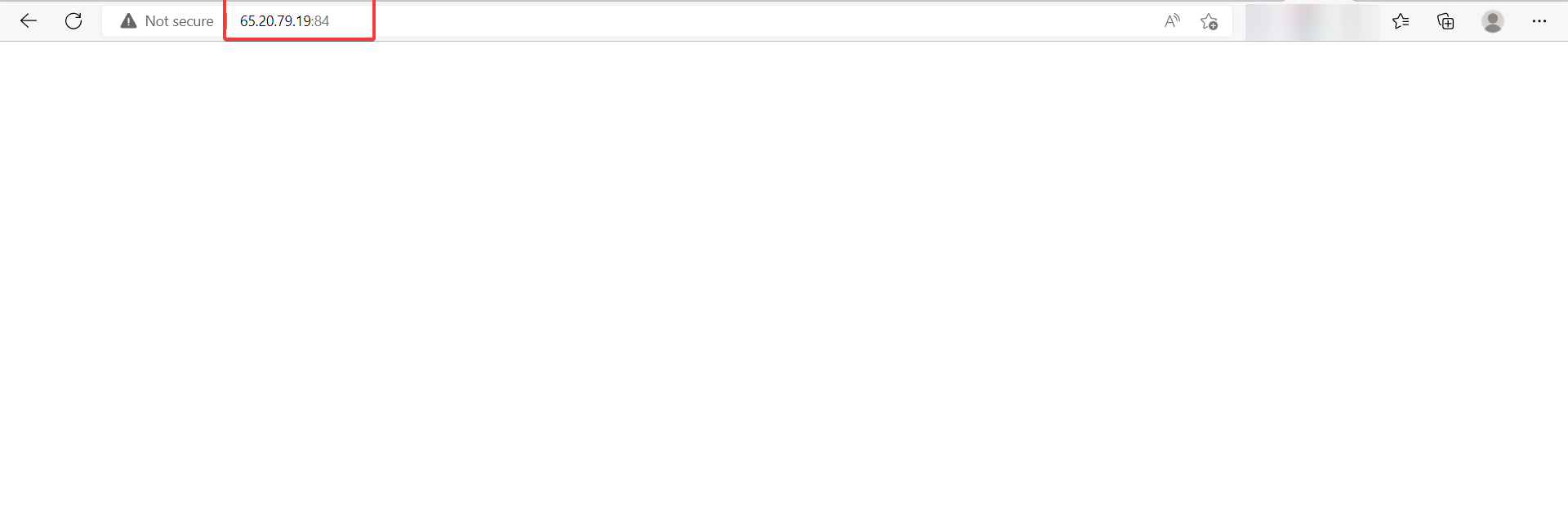
- Port Block: Ensure port
84is open and not blocked by any firewall - Firewall Block: Confirm there are no firewall rules restricting the device
- IP Conflict: The IP address assigned to the biometric must be unique on the network
- A blank page like the one shown above means that there is no port block, firewall block or IP conflict, so everything is fine.
Support
If the issue persists after all the above checks:
- Take screenshots of:
- Biometric Device Info screen (with Serial Number)
- Biometric System Info screen
- Share these along with:
- 2–3 employee details including:
- Employee Code / Enrollment Number
- Full Name
- Punch Date & Time
- 2–3 employee details including:
- Send all of the above to: support@hrstop.com
Our support team will debug and assist you further.
Summary
Most biometric sync issues are caused by incorrect device settings, internet connectivity problems, or user ID mismatches. By following the above configuration and troubleshooting steps, you can resolve most issues quickly or provide HRStop with the details needed for faster support.