HRStop simplifies the process of generating salary-related documents by allowing you to define formulas for payroll components such as Basic, HRA, Special Allowance, etc. When generating a document using a template, you can enter the CTC value, and the system will automatically calculate all dependent components based on the formulas you've set.
This reduces manual errors, saves time, and ensures consistency across all employee letters like Salary Breakup, Offer Letters, and Increment Notices.
Navigation Path: Control Panel → Forms and Policies → Document Template
Step-by-Step Guide: Configuring CTC Formulas in a Document Template
Step 1: Edit or Create a Document Template
- Navigate to the Document Template page.
- Locate the template you want to modify or use an existing one.
- Click the Edit icon next to the document template.
Tip: You can also clone an existing template if you want to retain the original and modify a copy.
Step 2: Add Payroll Keys (Fields)
Ensure the following fields (called keys) are included in the document template:
- CTC
- Basic
- HRA
- Special_Allowance
(You can include any additional components like PF, Bonus, LTA, etc., depending on your structure.)
These keys act as placeholders in the document and are populated either from the employee profile or via formulas.
Step 3: Assign Formulas to Keys
For each component, you can define a formula so the system calculates it based on the entered CTC value.
Sample Formula Setup:
| Component | Formula |
|---|---|
| Basic | CTC * 0.50 |
| HRA | Basic * 0.40 |
| Special Allowance | CTC - (Basic + HRA) |
How to Add the Formulas:
- Click the Edit icon next to the key in the template field list.
- Enter the desired formula using available keys and mathematical operators.
- Click Save to apply the formula for that field.
You can use +, -, *, /, (), and other basic arithmetic functions.
For the complete salary structure with all formula configurations, refer to: Setting Up an Appointment Letter Template with CTC Salary Breakup
Step 4: Generate the Letter Using Base CTC
Once your template has formulas configured:
- Go to the Bulk Generate or Generate Document screen.
- Select the employee(s) for whom the letter is to be created.
- Click Populate to auto-fill values.
- Manually enter the base CTC (e.g., ₹5,00,000 or ₹3,50,000) in the CTC field.
The system will:
- Automatically calculate Basic, HRA, Special Allowance, etc.
- Populate these fields in the document using your pre-defined formulas.
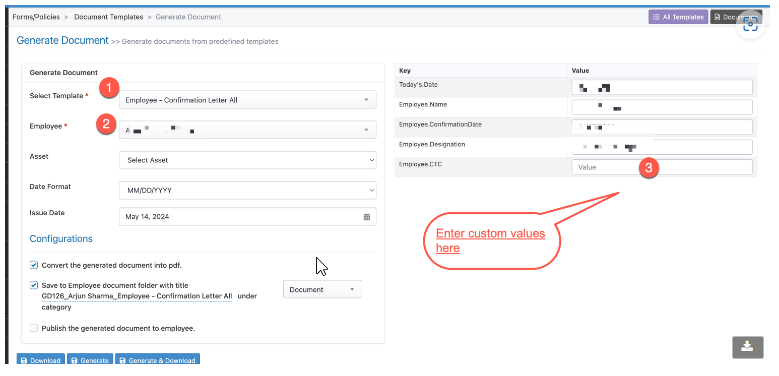
Step 5: Review, Finalize & Generate the Document
- Review all calculated values for correctness.
- Optionally click on Import Key Values if you need to adjust the auto-filled component values using a CSV.
- Enter the Document Title and Category.
Key Notes & Best Practices
- Maintain consistency: Use uniform formulas across all templates to avoid discrepancies in letters for employees in similar roles or pay bands.
- Test with 1–2 employees first before performing bulk generation.
- Use Import Key Values for edge cases where a component value needs to be overridden for a specific employee.
- Enable password protection for sensitive documents like salary or CTC breakups.
Example: Salary Structure Breakdown Based on ₹6,00,000 CTC
| Component | Formula | Value |
|---|---|---|
| CTC | Input | ₹6,00,000 |
| Basic | CTC * 0.50 | ₹3,00,000 |
| HRA | Basic * 0.40 | ₹1,20,000 |
| Special Allowance | CTC - (Basic + HRA) | ₹1,80,000 |
Important Notes
- Formulas must be configured correctly in the template before generating the document.
- The CTC value must be entered manually during document generation — the system does not auto-populate it.
- If employee salary is already configured in HRStop Payroll, salary tables can be auto-populated without manual CTC entry. Refer to: Salary Placeholders in Document Templates using HRStop Payroll Data
- Preview the document before final generation to verify all values are correctly populated. Refer to: Previewing a Document Before Generation
- Password protection can be enabled for the generated document if required. Refer to: Enabling Password Protection on Generated Documents