This article walks through the complete appraisal cycle in HRStop using a single example, from triggering an appraisal to publishing it and finally calculating arrears. For detailed information on any individual step, refer to the linked articles below.
Navigation Path: Control Panel → Payroll → Appraisals
Step 1: Trigger the Appraisal
Consider an employee whose appraisal needs to be triggered effective from April. Navigate to the Appraisals page and click + Trigger Appraisal.
Select the employee, set the Effective Date to April, and choose the required Salary Update Type. The Current Salary Break Up and New Salary Break Up are displayed for review.
Review the New Salary Break Up values and click Submit. For complete details on each Salary Update Type, refer to: Triggering an Appraisal
Step 2: Publish the Appraisal
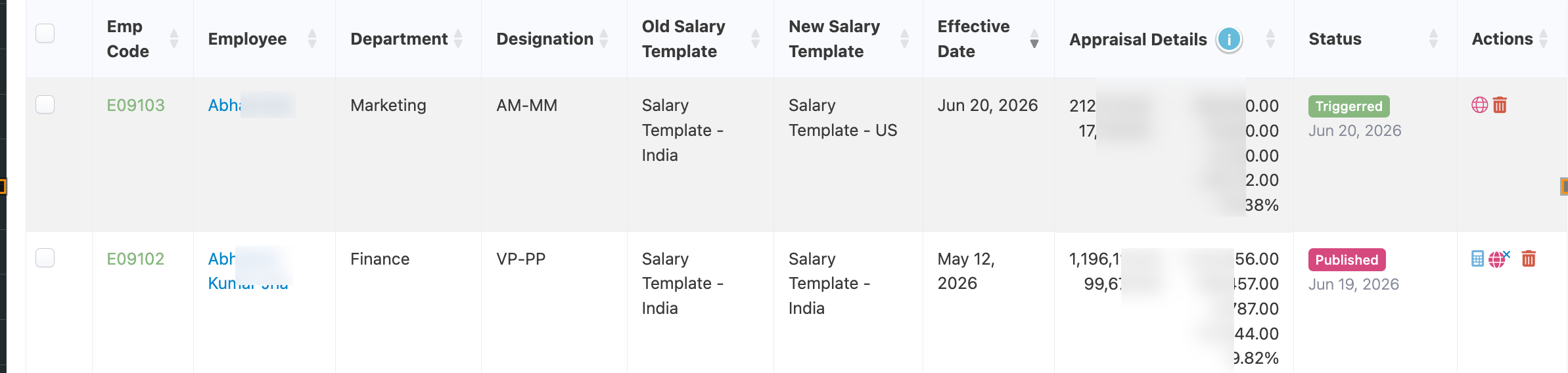
Once submitted, the appraisal appears on the Appraisals list page with a status of Triggered. At this stage, the employee's salary has not yet changed in payroll.
To apply the revised salary, the appraisal must be published. Locate the record and click the Publish icon against it. Once published, the status changes to Published and the revised salary becomes effective from April.
For complete details on publishing, unpublishing, and deleting appraisals, refer to: Managing Appraisals
Step 3: Calculate and Submit Arrears
Continuing the example, suppose this appraisal was triggered and published only in July, even though it is effective from April. This means the employee is due arrears for April, May, and June, since these months were paid at the old salary.
To calculate these arrears for a single employee, click the Calculate Arrears icon against the record on the Appraisals list page. To calculate arrears for multiple employees together, click Calculate Arrears on the top right of the Appraisals page instead.
Set the Arrear Period to April to June, and the Arrear Pay Out Period to July, or split across July and August if the company prefers to disburse the arrear amount in installments. Click Calculate Arrears to generate the values, review them, and click Submit.
For complete details on calculating arrears, refer to: Calculating Appraisal Arrears or Calculating Appraisal Arrears in Bulk
Where It Reflects
Once published, the appraisal updates the employee's salary in payroll from the effective date. Once submitted, the calculated arrears are added to the employee's payroll record and become available for processing in the selected payout period.
Important Notes
- An appraisal must be published before its salary revision reflects in payroll.
- Arrears can only be calculated for appraisals that have already been published.
- Once arrears are submitted, the values cannot be edited.